1

This question is similar to How to allocate more processor power to my (Ubuntu-based) Virtualbox system in Windows 7?, only that now I want to try this on VMware Player in order to see which works better.

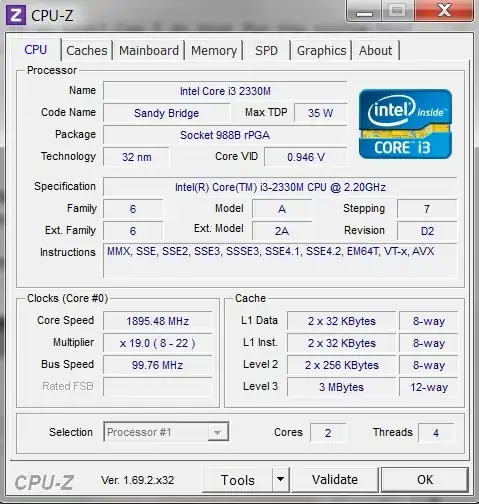
CPU-Z displays this about my CPU in Windows:

enter image description here

I have a good answer here on VBox, but the VMware Player 6.0.3 has different options.

I need to know what are the best options for the settings below, so that I can use most of my CPU resources on the VM, knowing that I will not use applications on the guest Win 7 while running the VM and that I will only use one VM at a time.

enter image description here

1 Answers1

0

The only major factors affecting performance would be the Memory and Processor categories.

  1. Processors

You should not, however, configure virtual machines to use more CPU cores than you have available physically (real cores, no hyperthreads).

Yes this is true. Since you have 2 cores, set the number of processors to 2.

The virtualisation settings are best set to automatic.

  1. Memory

Allocate a minimum of 1GB. If you have about 8GB RAM, for 64bit you can allocate 4GB and it would run well if you have 8GB+ RAM. For 32bit (though I doubt you're using it) 3GB is fine. But since you say that you won't be using applications on Windows when running the VM you can allocate a bit more.

EDIT(RAM)

There is not a fixed rule concerning the amount of RAM you should allocate. I personally allocate 45% of the total RAM for my VM (I run only ONE VM). Since you are going to run only 1 VM in Windows, and you aren't planning on running any applications in Windows, I'd allocate 2GB (2048MB) if I were to do it. However, before all of that you should check whether your computer can support it. Go to Task Manager (ideally do a reboot first), and check how much RAM the computer is using with no applications open. If it is using >1.6GB (due to startup applications etc), then I would allocate 1.5GB for the VM instead, which is just as fine.
Rsya Studios
  • 3,626
  • 2
  • 17
  • 25
  • please look at the linked question too. there, the answer says: "your i3 has 2 cores, but 4 threads, so the host sees it as 4 processors". that seems to be the case here too. should i set to 4 and not to 2? considering RAM I only have 4GB ("2.45 usable") on the Win 7 host, so I allocated only 1GB to the guest –  Oct 10 '14 at 08:53
  • 1
    @cipricus Yes 2 cores+ 4 threads, seen as 4 processors. Anyway if you set the number of processors to more than you have eg 6, there would be an error popping out - so you can try that to check the max number you are able to allocate. For RAM, there should be some indication for how much RAM is recommended to be allocated at the sliding bar? But 1GB should be fine. – Rsya Studios Oct 10 '14 at 09:27
  • what do you think about the other advice in the linked q/a? - *"To avoid problems don't set it any higher than your number of PHYSICAL cores, so in your case don't try and use more than 2 virtual CPUs"*. Also, if you please, put the precise numbers for RAM and CPU that you recommend inside the answer's body? then i will mark it as definitive –  Oct 10 '14 at 12:24
  • 1
    @cipricus OK I've edited the answer. For CPUs I forgot that half of the processors showing up in my Task Manager are not physical, so you should set 2 for your VM. RAM would depend (see answer). – Rsya Studios Oct 10 '14 at 13:29
  • when trying to do the same thing with VirtualBox and allocate more than 1245 MB RAM to the guest, an error message was displayed saying not to give more than 50% of the total memory. I do have 4GB of RAM but a lot is reserved by the GPU, so that only 2.45 GB are 'usable' (info that is displayed in Win 7 Computer properties). In VMware I allocated 2GB to the guest and it's ok for now, although the difference was not obvious compared to 1GB. What works fine in fact with the guest Lubuntu, while eOS is much slower, due to my laptop CPU limitation pointed out by the answer to the linked question. –  Oct 11 '14 at 12:19
  • 1
    @cipricus I assumed that you had 4GB(or about 3.8GB) available RAM, that was wrong on my part. If it's running fine then great, though now factoring in your 2.45GB usable RAM I'd allocate about 1.1GB instead. But remember you can change the RAM allocated anytime in the Hardware Settings (need to shut down VM first) :) – Rsya Studios Oct 11 '14 at 20:25