I'd like to use SSD as ReadyBoost cache disk. However, ReadyBoost can work with pluggable USB drives only (AFAIK). Is there any way to avoid this limitation?
Asked
Active
Viewed 5.2k times
18


-
2If you look at the [Wikipedia](http://en.wikipedia.org/wiki/ReadyBoost) article it states *"If the system drive is a solid state disk (SSD), ReadyBoost is disabled since it would have little or no effect."*. So the current answers have said you *can* use and SSD for ReadyBoost, but apparently not if it's the system drive. – DMA57361 Aug 13 '10 at 14:49
4 Answers
9
Use the SSD as system drive. Not only will virtual memory be much faster (than anything ReadyBoost has to offer via the USB 2.0 bottleneck), but also the overall system performance.
P.S.: ReadyBoost is a relic from the days when RAM was still a precious commodity. Today, memory is dirt cheap; I wouldn't bother with ReadyBoost.

Peter Mortensen
- 12,090
- 23
- 70
- 90
-
4Big SSD is too expensive. And Win7-64 eats 20 gigs for empty installation only... – skevar7 Jan 09 '10 at 16:13
-
1not true, use vLite and get a Windows 7 installation crammed onto a 4 GB SSD if necessary, no problem. – Jan 09 '10 at 16:15
-
2Not exactly correct, it can't shrink 64bit Win7 to 4gb. But vLite is nice tool, thanks. Maybe I'd better go for SSD as system drive. But that damned ever-growing WinSXS folder makes me crazy :-/ – skevar7 Jan 09 '10 at 18:08
-
-
-
-
2I need to improve disk system performance. Increasing RAM anymore won't do the trick. – skevar7 Jan 13 '10 at 07:06
-
1Your PS about RAM is incorrect. From the first paragraph of the whitepaper: "This feature uses <...> as a hard disk cache to improve disk read performance" http://technet.microsoft.com/en-us/magazine/ff356869.aspx – Philip Dec 03 '13 at 16:50
8
On Windows 7 you CAN use an internal SSD drive for ReadyBoost.
Example scenario where it makes "some" sense: You have an existing Windows 7 desktop that could use a performance boost, but you don't have time to reinstall/migrate the boot drive to an SSD.
Install a cheap SSD, and configure it for ReadyBoost (just right click on the drive the same as you would a USB Flash drive). NOTE: ReadyBoost will only use 4GB of the drive.
Move your virtual memory paging file from the boot drive to the SSD.
Move any data files you are working with actively to the SSD (such as source code if you are developer).
Total time invested: About 10 minutes Performance improvement: Noticeable/useful but not magic

Scrappydog
- 241
- 2
- 3
-
3ReadyBoost *can* use more than 4Gb of a drive - the limit is only present on Vista and certain filesystems (NTFS & exFAT allow more). I've got a spare 16Gb SD Card that I leave plugged in my machine that's providing a 16Gb ReadyBoost cache... – DMA57361 Aug 13 '10 at 14:42
-
Yeah, Win7 can do it. Unfortunately, I've found that ReadyBoost is useless for my system, coz it was designed to aid systems with poor RAM. – skevar7 Aug 15 '10 at 12:11
-
1Note that doing this will put _extreme_ wear on the SSD very quickly, which may decrease its lifetime significantly. – nhinkle Jun 01 '11 at 17:18
-
You can get a 16GB SSD for ~$55 so wearing it out quickly might be a cheap tradeoff for a nice performance boost for an aging machine... – Scrappydog Jun 03 '11 at 11:51
-
5@skevar7: Uhm no, ReadyBoost is to aid systems with slow HDDs, not RAM. – Tamara Wijsman Sep 26 '11 at 13:27
-
@Scrappydog: I would advise against your last option, you are going to wear out the SSD at a fast rate if you do so. You are way more likely to find performance improvements from making your application/compiler load faster than the source files (which are already in memory or can be cached using `ccache` or a RAM disk)... – Tamara Wijsman Sep 26 '11 at 13:28
-
ReadyBoost is not designed to work this way. ReadyBoost is designed for low memory systems. It is *not* a disk cache. It does *not* cache your most frequently read items to disk. On any system with a decent amount of memory, its benefits are unnoticeable. – Keltari Jul 25 '13 at 01:40
-
1@skevar7 I believe your comment about being designed for low RAM systems is incorrect. See the MS article: http://technet.microsoft.com/en-us/magazine/ff356869.aspx – Philip Dec 03 '13 at 16:53
-
2@nhinkle How would using the SSD as a disk cache result in more wear than using the SSD as the OS installation disk in the first place? I don't think that concern is valid if the other option is directly installing the OS on the SSD. – Philip Dec 03 '13 at 16:53
-
@Philip The advice to move the virtual memory page file on the SSD is a bad idea. This file gets more writes to it than normal files, causing greater wear on the drive. Shortening its lifespan. – Phil Hannent Jul 01 '14 at 12:52
5
I managed to set up a full 120 GB SSD disk to use ReadyBoost by creating four partitions and enabling ReadyBoost on them all. ReadyBoost for Windows 7 allows only max 32 GB per partition but one disk can still be partitioned more times. Total maximum will be 256 GB with 8 partitions (32 GB each).


-
This is ***NOT*** how readyboost works. You have essentially wasted an etire 120 GB SSD. http://technet.microsoft.com/en-us/magazine/ff356869.aspx – Keltari Jul 25 '13 at 01:35
-
@Keltari why do you say that? I agree it would probably be better to just install the OS on the 120GB SSD, but I don't think it's wasted. From the first paragraph of the article you linked: "This feature uses ... as a hard disk cache to improve disk read performance." So all 120GB should be in use as a cache to his slower HD. – Philip Dec 03 '13 at 16:49
-
Might as have used the SSD as the OS drive instead then move your documents folder to another data drive. ReadyBoost is fine and all, but the data has to be read from a slow hard drive to a fast SSD ReadyBoost to be re-used again. The time required to put it on the SSD is a waste when you can just read off a fast SSD to begin with. – Sun Oct 21 '14 at 22:06
-1
ReadyBoost essentially allows you to treat non-hard drive storage devices as memory.
If you want to do this on a regular internal hard drive, you should just allocate swap file space on that drive.
To do this:
- Go to system properties (Winkey+Pause, or right click My Computer->Properties)
- Advanced
- Under "Performance" frame click Settings
- Advanced
- Change
You should see this dialogue:
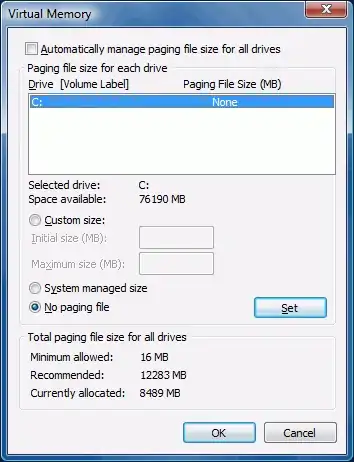
Here you can add a custom or system managed size page file for the drive letter of your SSD.

Gaff
- 18,569
- 15
- 57
- 68

RJFalconer
- 10,195
- 4
- 43
- 51
-
3That's not ReadyBoost, that's virtual memory. ReadyBoost caches files, virtual memory doesn't. – mashwell Jan 10 '10 at 00:18
-
Yes, but it's as close as you can get to readyboost for an internal drive though, afaik. – RJFalconer Jan 10 '10 at 10:33