In Excel, I usually solve ##### errors by double-clicking offending column headers. However, this can get a bit tedious when there are multiple error columns. Is there a quicker way to solve this?
Asked
Active
Viewed 3,766 times
32

Raystafarian
- 21,583
- 11
- 60
- 89

M.Hesse
- 343
- 4
- 8
-
32No need to swear! – Andrew Grimm Jun 16 '15 at 14:24
-
27@AndrewGrimm, this is Excel we're talking about. – Mark Jun 16 '15 at 22:16
-
2Is ##### actually an error? – Scott Seidman Jun 18 '15 at 12:49
-
1@ScottSeidman it's not `#NULL!`, `DIV/0!`, `VALUE!`, `#REF!`, `#NAME?`, `#NUM!` or `#N/A` - so not, it wouldn't be identified as an error by something like `iferror()` – Raystafarian Jun 18 '15 at 13:15
-
@Raystafarian -- then its just a display convention, or some such. – Scott Seidman Jun 18 '15 at 13:42
4 Answers
46
You can autosize multiple columns at the same time by double clicking, just like you do with a single column.
Step 1. Select multiple columns:
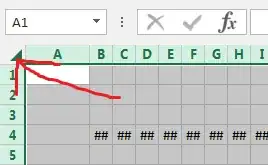
Either select all columns by clicking in the arrow in the upper-left corner:
Or click and drag to select a smaller range of columns:

Step 2. Autosize selected columns:
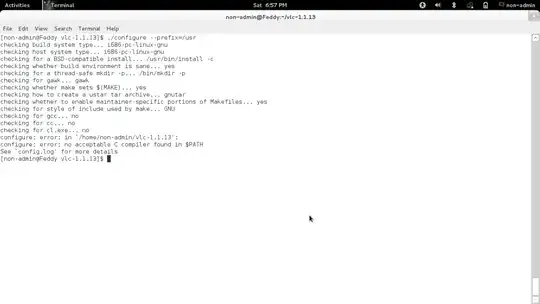
Now double click on the right boundary of any of the selected columns, when your cursor changes to the column-resizing double arrow.


Justin
- 819
- 1
- 7
- 10
-
This is a worse solution than autofit because it resizes columns to the same width – JamesRyan Jun 18 '15 at 11:27
-
3@JamesRyan - It seems to autofit properly. I just verified with different length values. Are you sure you're double clicking to resize the column instead of clicking and dragging? – Justin Jun 18 '15 at 13:01
-
ah I think that has changed since earlier versions when I learnt not to do it – JamesRyan Jun 18 '15 at 14:17
39
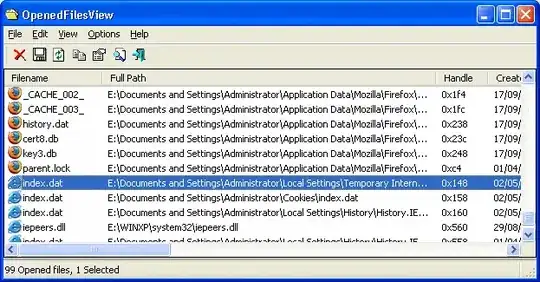
Yes, on the ribbon go to Home - Cells and click Format
Under there, you can choose Autofit either Row Height or Column Width.
Raystafarian
- 21,583
- 11
- 60
- 89
19
For the keyboard warriors, here's a technique that doesn't require the mouse:
- Select all - Control+A or Control+Shift+8
- AutoFit columns - Hold Alt, then press in sequence O, C, A. You can let go of Alt after you press O.
This feature, called Office Access Keys is a holdover from the pre-ribbon days. If you had memorized the old menus, you can continue to access them this way.
In this case, the navigation was:
- Format
- Column
- AutoFit

boflynn
- 291
- 1
- 4
-
1Alt H, O, I is the new access key for this... it seems a bit slower though as for me it takes a few seconds for office to draw the shortcut keys (which it doesn't bother with for the old keys). – Random832 Jun 16 '15 at 20:36
2
In addition to narrow columns, the hashes can also be displayed when a cell containing a large text is formatted as Text. In Excel 2003 (and before?), this happens when the cell contains 256 to 1024 characters.
Changing the category from Text to General helps.

Michel de Ruiter
- 1,118
- 13
- 23