40

Is there a way to keep Windows 10 searches local and stop Bing results/searches?

Windows 8 has "Search Settings" => "Use Bing to Search Online". Windows 10 has Bing Cra...er... results included and no option to hide Bing in addition to the additional Search Icon on the taskbar.

This says that the Search Icon on the main bar can't be removed, but it can be hidden. Seems clunky and annoying that this "feature" can't be uninstalled or controlled yet, but whatever... at least it can be hidden.

Windows Key + Start Typing -> get local AND web results. Click on any of the results below the divider on the image below and get a Bing Results page. (Edit: Added pic that shows it searches Locally - the documents listed, the Windows Store - Apps listed AND Bing - stuff below the divider. Two of three are unneeded with what I feel should be a local search)

Windows 10 preview enter image description here

When this happened in Ubuntu (Amazon Controversy), they key was to uninstall "Lenses". Is there a known way to remove the web results from Windows 10 and stop "local" searches from leeching over into the world-wide-web? Hosts file entry? Service to kill?

WernerCD
  • 4,313
  • 6
  • 32
  • 43
  • 1
    You can disable this feature in `Windows 8.1` at this time the ability disable Bing result in Windows 10 has simply not been implemented yet. **If you don't like it then wait until the RTM version of Windows 10** – Ramhound Oct 27 '14 at 18:27
  • 2
    @Ramhound Not liking a "feature" isn't enough to stop using it out-right (Especially for testing purposes). I know it's a beta/preview. There are also some very adventurous individuals (like the link on how to "hide" the search icon using autohotkey), so "Hasn't been implemented yet" doesn't mean this can't be disabled or blocked in the interim. – WernerCD Oct 27 '14 at 19:03
  • What your asking about basically amounts to an feature that hasn't been implemented. How will this question be helpful in 3 months when it is possible? Because the only answer that anyone could provide today is that its not possible today. – Ramhound Oct 27 '14 at 19:25
  • Submit it to MS as a feature request. – Ƭᴇcʜιᴇ007 Oct 27 '14 at 19:50
  • 2
    @Ramhound MS seems to be actually doing faster releases. Windows 8->8.1->8.1u1... 365 etc. Relatively fast releases that seem to be the new normal. Does that mean we have to stop asking questions because next quarter an update will change everything, making all of the questions now moot? This is their product now, so I'm not sure why this question wouldn't be relevant - especially since it's tagged Windows-10-Preview. Edit: And after a quick search, I don't see anything that says "Don't ask questions about beta software". Please correct me if I'm wrong. – WernerCD Oct 27 '14 at 22:04
  • @Ƭᴇcʜιᴇ007 I've submitted feedback via their mechanisms. That doesn't answer how to fix/work around the problem now. – WernerCD Oct 27 '14 at 22:09
  • @WernerCD - Of course not. I have no problem with questions about Windows 10 about how a feature works thats what we are here for. But I am going not going to beat around the bush when somebody asks about something that has not even been implemented yet. The fact its not possible is well document on technology websites its also something that will be fixed. – Ramhound Oct 27 '14 at 23:52
  • 2
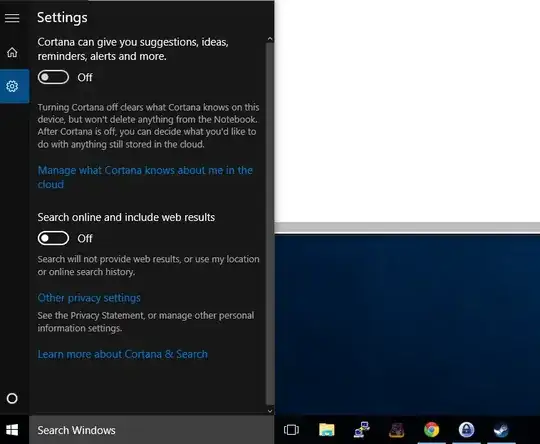
    It seems Microsoft has finally heard our plea. Web Search is now optional with a simple setting in build 10162: `Search online and include web results` `yes`/`no` – Kontrollfreak Jul 03 '15 at 14:34
  • @Kontrollfreak I'll check that out. I'm still rocking 10130 here. – WernerCD Jul 03 '15 at 16:41

8 Answers8

34

One of the more recent builds (10162) supports doing this through the standard search interface.

Simply click in the windows search text box, click the "Gear" icon, and use the slider below the text "Search online and include web results".

Options menu screenshot

n1000
  • 463
  • 4
  • 4
12

Answer was found here.

Workaround, figured there would be a GPO for it. Bring up the group policy editor (gpedit.msc), go to Computer Configuration->Administrative Templates->Windows Components->Search. Enable the policies called "Don't search the web or display web results in Search" and the one right after it that's for metered connections. That'll get it off the start menu anyway, the search app itself still uses Bing of course. The settings screen is obviously bugged.

Nick Craver
  • 191
  • 1
  • 13
Zalatik
  • 322
  • 1
  • 7
  • 1
    This is not working for me. I enabled "Do not allow web Search", "Don't search the web or display web results in Search" and "Don't search the web or display web results in Search over metered connections".. Still web results are shown in my search results. I am using Windows 10 Build 10049 – SatheeshJM Apr 15 '15 at 13:06
  • Not sure if it's changed, but in the more recent updates (I took a break from 10 for a few iterations) this hasn't worked for me. – WernerCD Jun 29 '15 at 13:51
  • @SatheeshJM You probably have to reboot first after setting the GPO. – Josh Mouch Nov 19 '15 at 20:54
8

I've been looking for a way to do this via GPO or script to push across my organization. It is important that this be a preference in my environment; if a user wants to turn it back on they should be allowed to do so. I discovered the registry key that controls this, so I can set it as a Group Policy Preference.

I will summarize the four ways to turn off the Bing web search (most of which were mentioned above) for future readers:
1) Manually
Type something into the start menu, then click the gear icon on the left.
User has to make the change. Not programmatic/deployable.
(screener & n1000)
2) Block via Firewall
Program is called "Search". Need to Deny the outbound connection.
User can change if they have permissions to edit their firewall.
When firewall blocks the start menu puts up a giant "Can't connect to Search, make sure you've got internet" message
(WernerCD)
3) Block via GPO
Computer Configuration\Administrative Templates\Windows Components\Search\Don't search the web or display web results in Search
I tried the "Do not allow web search" but that didn't do it
This can be set via local group policy or domain policy. Users can change local policy if they have permissions, otherwise it is locked.
4) Registry
HKCU\SOFTWARE\Microsoft\Windows\CurrentVersion\Search REG_DWORD:BingSearchEnabled 0(off) 1(on)

I'll be using #4 for my company.

R_C_III
  • 81
  • 1
  • 2
5

For now, that's how it could be done (build 10130). Maybe MS would remove this from future versions.
1. Open Advanced Firewall panel -> Outbound
2. Find two entries named "Search"
3. Open their properties and change "Allow connection" to "Block connection" for both rules

The result is:
1. If I search for program of file, I don't have web results anymore
2. If I want to search web, I can select 'search bing for xxx' which opens bing site in browser
3. As I type, there's no more lags

Possibly, this could stop Cortana from working globally, but I never use it anyway.

Andy Scull
  • 51
  • 2
  • 3
  • Not sure if it's changed in the recent iterations, but this didn't work for me (took a break from 10, and only started using it again in the last few weeks). Blocking Search didn't do anything as the block didn't stick within Windows Firewall. The only thing that worked was when I installed a secondary firewall (I used TinyWall) and use it to block the search. – WernerCD Jun 29 '15 at 13:53
  • This worked for me! I blocked the outbound rule for Cortana. – Karle Jan 10 '17 at 21:37
4

The option to turn web search off is there, but it's accessible only if Cortana is OFF.

Press Win, start typing, and then, from left menu, find Options.

If you have Cortana, turn her off and the choice to turn off the web search will appear.

It seems you cannot turn that off if you want Cortana.

2

GPO didn't work for me on my most recent install of 10. The firewall one didn't work me either (I remember it looking different. There a new front end for it that I'm overlooking now?). I don't see/have "Search" rules/options in Windows Firewall with Advanced Security.

I've ended up using one of two options:

First, I used TinyWall to block "SearchUI.exe" from outbound connections. Any other firewall could probably do the same... I got semi-annoyed with having another application installed on top of Windows Firewall so...

Second, after some soul searching and a quick 'Ah-hah!' moment and I was back too Windows Firewall with Advanced Services. On my system, I'm not sure if it differs per system, I added a rule to block in Windows Firewall to this file:

Windows Firewall with Advanced Security:
General > 
    Enabled
    Block the Connection
Programs And Services >
    "This Program":
    %SystemRoot%\SystemApps\Microsoft.Windows.Cortana_cw5n1h2txyewy\SearchUI.exe

I no longer have "outside" results in my search. Again, I'm not sure if the _cw5n1h2txyewy is my systems, all systems, version dependant... but it works. SearchUI definitely needs blocked at the firewall.

WernerCD
  • 4,313
  • 6
  • 32
  • 43
0

It seems to be Lavasoft Web Companion that is forcing Bing on users. Open that up and it supposedly gives you the option to default to another search engine. The Internet settings and browser settings seem to be repeatedly over-ridden by this app.

Steve
  • 1
-1

Disable BingSearchEnabled and CortanaConsent all user all profiler Use tools in powershell 

https://github.com/mikeHack23/powershell/blob/main/Corregir%20Error%20Menu%20de%20Inicio%20Windows10.ps1

  • 1
    Please quote the essential parts of the answer from the reference link(s), as the answer can become invalid if the linked page(s) change. – DavidPostill Apr 23 '21 at 07:44