43

I've just installed Win8.1 and I'm trying to set up IIS. When I open Add remove programs from the start menu I get the pc-settings app.

In the pc-settings app I get a "tooltip" or whatever we should call it, that hints me to "Switch between apps" by swiping from the edge. Well fine, but I don't want to do that right now, and I can't get that tip to dissapear.
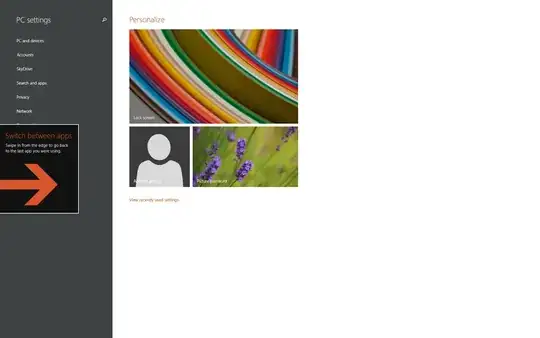
A tip

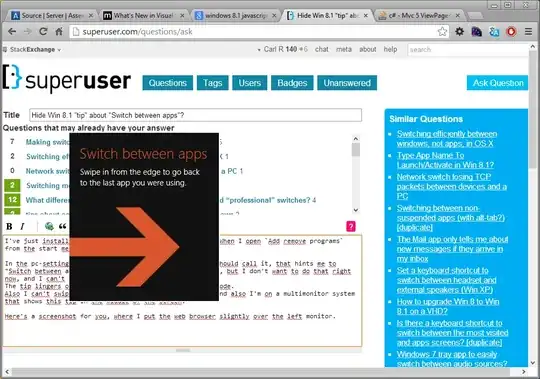
The tip lingers on even into Visual Studio, covering my code. I can't swipe because I don't have a touch screen, and also I'm on a multimonitor system that shows this tip in the middle of the screen.

Here's a screenshot for you, where I put the web browser slightly over the left monitor. Top notch UX
So, besides rebooting, how am I supposed to kill this very informative tip?

EDIT

When I kill the app by alt-f4 it dissapears right until I open the settings app again, then it's back.

What I'm asking about is how to dismiss items like this in general.

Carl R
  • 687
  • 1
  • 6
  • 13
  • You can "swipe" with your mouse. – gronostaj Oct 28 '13 at 08:29
  • 1
    @gronostaj I can't swipe from outside that screen because then I'll deselect the app, since I'm on another monitor then. – Carl R Oct 28 '13 at 09:07
  • My problem with these 'tips' is that every single computer at work forces me through the extended delay of the intro screen that starts with 'Hi' then I am forced to go through these tips EVERY time I log in to a new computer, AND every time I do that with a different account. It drives me nuts. Particularly as it usually happens when guiding someone through using the PC in the meeting room just before a big meeting. – BeowulfNode42 Feb 04 '16 at 07:11

6 Answers6

45

Some notifications can be removed by moving the mouse cursor to the top left corner of the screen.

If that doesn't work, try this::

  1. Go to Search and enter Local Group Policy Editor or gpedit.msc
  2. Expand User Configuration, Administrative Templates, Windows Components, and lastly Edge UI
  3. Double click on Disable Help Tips
  4. Set the configuration to Enabled
  5. Select Apply and exit Local Group Policy Editor.

When I did my research, I found the steps over here. Since then, no more annoying notifications from Windows.

Rudolph
  • 2,712
  • 3
  • 26
  • 31
  • 12
    Mouse to the top left corner works great. Thank you! – Carl R Oct 28 '13 at 09:08
  • 2
    Thanks for this. I just built a Windows 8.1 development VM and couldn't get the tip to go away since outside the screen was also outside the VM host. The fact that this is necessary speaks to the length of road MS have yet to walk in a "unified" environment. – Stuart Thompson Feb 03 '14 at 19:49
  • I found that for a VM you can do the Win+Tab twice trick to get rid of it. – fret Feb 26 '15 at 10:05
  • This answer is a "fight against it!" kind of answer. If you would prefer a "work with it :-)" kind of answer, see the one I just added. – omatai May 27 '15 at 23:09
  • Thanks. I am surprised how MS created such a complete piece of junk after Windows 7. I have been using Windows since Window 95 and in Windows 8.1 I am finding myself asking question like 'how do I get to the desktop from here', 'how do I get to the internet' and 'how do I remove all these boxes and suggestions that I didn't want in the first place'. My dear old mother usually asks this type of question and now it is me. It is horrific. – Julius Oct 23 '15 at 22:57
  • thank you. good grief. i spent an hour before finding this. no thanks to microsoft. no wonder their device market share is not growing – johnshen64 Feb 12 '16 at 00:54
  • This did not work for me but answer from SW_User worked great, right click on the task bar, select Navigation and uncheck the Corner Navigation – rboy Jul 11 '16 at 15:44
4

This works for me by following:

Download and install drivers: http://windows.microsoft.com/en-in/windows-8/all-drivers

Perform the steps mentioned to turn off App Switching: a: Press Windows key + I. b: Then click Change PC Settings. c: Then click PC and Devices. d: Then click Corners and edges. e: Move the Slider towards off for the option Allow switching between recent apps.

user306044
  • 41
  • 1
4

Another approach is this guy's illustrated method.

Basically, if you have a non-touchscreen PC, you disable the touch screen input device in Windows' device manager:

http://www.askdavetaylor.com/how-do-i-get-rid-of-win8-switch-between-apps-tip-windows/

Disclaimer: I am in no way related to this guy. (His page has an exit-able "sign up now!" popup but it's harmless)

I'm running a licensed copy of Win 8.1 under a licensed copy of VMware Fusion on a Mac.

Anon7
  • 41
  • 3
  • I somehow got `HID-compliant touch screen` under "Human Interface Devices" (maybe related to arduino driver installation), which needed to be disabled for the arrow box to disappear. – Pasi Savolainen Sep 04 '18 at 17:24
4
  1. Right-click the task bar
    a. click Properties
  2. Click Navigation tab
  3. Uncheck all the boxes in Corner Navigation section
  4. Click apply (Any corner "tips" that are currently displaying will disappear)
SW_user2953243
  • 211
  • 1
  • 3
2

Clicking on the arrow with my mouse didn't work but it did help when I pressed the Windows key and TAB (which is the keyboard parallel to switch between apps).

This does not prevent it from happening again somewhere else, but do the combo again and it's gone.

Jan Doggen
  • 4,108
  • 10
  • 36
  • 51
marc-rib
  • 121
  • 1
0

To disable "Switch between application" screen on either of the laptop / computer; whether touch screen or not. Simple procedures is as follows:

  1. Go to "PC settings" through "Search" option or as per your shortcut
  2. Click on "PC and devices"
  3. Go and click on "Corners & Edges"
  4. "Off" all the "On" buttons under "App switching"

It worked perfectly on my system.

Adaephon
  • 5,634
  • 3
  • 20
  • 25