##According to this MSDN article: Support and Q&A for Solid-State Drives
- You don't have to disable the following features manually. Windows 7/8 automatically disables them if a SSD is detected:
- You don't have to set up a correct alignment. Windows 7/8 will use a proper offset if you have created your SSD partitions during a clean Windows 7/8 installation.
However, you can check your SSD alignment with onboard tools:
Open msinfo32 » Components » Storage » Disks » Partition Starting Offset
Use calc.exe to divide the number of bytes by 4096. If the result is a full number, you're fine. Otherwise re-align your system using one of the options listed here.
 AS SSD Benchmark can also check for a correct alignment
- You don't have to install Intel SSD toolbox like all Windows XP users have to for a working TRIM-command. If you use a non-RAID SSD setup, Windows 7/8 already supports TRIM. Read here for a comprehensive article about how TRIM works.
I strongly recommend you to use Intel's Rapid Storage Technology driver (if you are on an Intel mainboard) instead of default MSAHCI driver. It will increase your read/write speed and will give you TRIM-support even for RAID configurations (since RST 11.0)
Use commandline utility trimcheck to check if TRIM is actually working on your system and not only supported

- You don't have to move your
Pagefile.sys. Let it be placed on your SSD drive
Most pagefile operations are small random reads or larger sequential writes, both of which are types of operations that SSDs handle well.
Note #1: Don't disable the pagefile even if you have enough RAM. There are still some programs out there which doesn't work very well if pagefile.sys is disabled.
Note #2: Some people recommend to put the Pagefile.sys on a RAM disk. But there are also arguments against it and for example Mark Russinovich (former Windows kernel developer) says: "Yes, putting the pagefile on a RAM disk is ridiculous."
##More tips
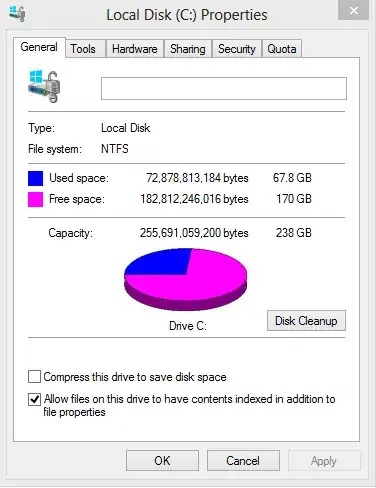
- Disable Allow files on this drive to have contents indexed to reduce SSD writings. The Windows internal search is terrible regardless if this option is en-/disabled - at least under Windows 7. Use an alternative like Everything if needed. (The Windows 8 search uses Bing)
Indexing is actually more trouble than it's worth on an SSD. Because it's constantly maintaining a database of the files on your system and their properties, it causes a lot of small writes, at which SSDs do not excel.
Lifehacker
Disable hiberfile.sys if you don't use hibernation (for example to conserve laptop battery life). With today's SSDs simply powering down and booting back up will happen fast enough so hibernation doesn't make so much sense as with a system HDD. This tip is more for saving some SSD space than reducing write operations.
Change the default locations for often used folders like My Pictures, My Videos, My Documents and My Music. This Microsoft KB article shows you how to move them to a HDD if available. You won't notice a speed reduce when playing videos or music from a HDD.
###Used resources