8

I want to clean up some data I copied from an Excel spreadsheet and wash off any formatting using Notepad++. I want to take advantage of line numbering of Notepad++ to count the number of lines I have. That is: the number of rows with actual data in Excel.

Cause for exporting data from Excel

Each row of a spreadsheet is it's own line number. It's indicated by the number in the left margin in Excel. So I could look at that and figure it out.

That is, if it looks like this:

  A    B
1 #### something
2 #### something
3 #### something
4 #### something
5 #### something
6 #### something

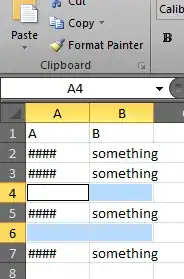
But if it looks like this...

  A    B
1 #### something
2 #### something
3 
4 #### something
5 
6 #### something

... and the list is very long, then it's really hard to say how many rows/lines there are in this list. I would have to go down the list and visually count the rows. I mean I know Word has the option to tell you how many lines or words you have in a document. But I'm not sure there even is such a thing in Excel.

And I don't know if you can do anything about this right in Excel, i.e. tell it to remove rows of cells without any data and move the rows of cells next to each other (top/bottom). If you know of a way, please share it. But I think Notepad++ is a great tool for manipulation of text data like this.

Problem I face in Notepad++

I essentially want to remove the extra line breaks. This is what it might look like.

Line 01:something
Line 02:something
Line 03:something
Line 05:
Line 06:
Line 07:something
Line 08:something
Line 09:
Line 10:
Line 11:
Line 12:
Line 13:something

I want to remove line 5, 6, 9, 10, 11, and 12.

What I have tried

  • TextFX Edit: I tried the option Delete Blank Lines from Edit menu. Didn't work.*1
  • Replace: I tried typing \n\r in find and nothing in replace field. "0 occurancies were found" *2
  • Replace: I tried typing \r\n in find and nothing in replace field. "402 occurancies were replaced" But it puts everything on a single line. Like this: something something something
  • Edit menu: I tried Remove Empty Lines from Edit menu.*3
  • Edit menu: I tried Join Lines from Edit menu.

So what else?... what else can I try?

This is the result I am after:

Line 01:something
Line 02:something
Line 03:something
Line 07:something
Line 08:something
Line 13:something

How can I achieve this?

Update

****1, 2, 3** = These three methods should work. I have tested and verified each. The other two do not and should not. They have a different purpose.*

Okay, I think I know now why this is not working. The text I am processing is copied and pasted from Excel 2010 into Notepad++ and there are some extra characters in there that throw off these commands. There are some tabs and CF or LF characters.

Here is a closer description of what I have.

Line 01:####[tab]something[CR][LF]
Line 02:####[tab]something[CR][LF]
Line 03:####[tab]something[CR][LF]
Line 05:[tab][CR][LF]
Line 06:[tab][CR][LF]
Line 07:####[tab]something[CR][LF]
Line 08:####[tab]something[CR][LF]
Line 09:[tab][CR][LF]
Line 10:[tab][CR][LF]
Line 11:[tab][CR][LF]
Line 12:[tab][CR][LF]
Line 13:####[tab]something

Where...

  • = 4-digit number
  • [tab] = tab
  • [CR] = carriage return
  • [LF] = line feed

So how do you deal with this?...

Oliver Salzburg
  • 86,445
  • 63
  • 260
  • 306
Samir
  • 20,527
  • 74
  • 166
  • 226
  • prolly a dumb question, but did you change the search mode when you tried the /r/n combinations? I just tried with some dummy text copied from excel and it seemed to work – mcalex Jun 19 '13 at 08:40
  • Hmm... you mean normal vs. extended and reg. expression? It's set to Extended. – Samir Jun 19 '13 at 08:44
  • I just tried typing in 6 rows in Excel. From A1 to A7 I typed in 1234 to 1240. And from B1 to B7 I typed in "something" repeatedly. Then I tried copy and paste it in Notepad++. It is as you said, it does work. I think the problem is that the data I have in Excel is copied and pasted there from a Wikipedia table/list. Some of the cells where automatically joined to one, so I had to select everything and click the button that undoes this so that every entry has it's own cell. Somewhere along the way tabs where introduced and that's the problem. – Samir Jun 19 '13 at 08:51
  • [Merging and splitting cells](http://www.dummies.com/how-to/content/merging-and-splitting-cells-in-excel-2010.html) in Excel 2010. Some of the rows I had in Excel after pasting the data from Wikipedia had merged/joined cells in the vertical direction. E.g. A14 and A15, B14 and B15, C14 and C15, D14, D15 (not merged), and then E14 and E15. – Samir Jun 19 '13 at 09:03
  • 1
    @pnuts What is "tl;dr"? Is that Latin?... – Samir Jun 19 '13 at 10:08
  • 1
    Oh my! Would you look at that! :) LMAF! I thought you just came up with that. But it really is an Internet acronym! **"Really translates to: I'm too lazy to read the entirety of what you said, but I still want to say something."** Helpful for others you say? You're telling people to stop reading. Right at the beginning! If they feel the same way as you are, they won't even read your semi-colon. I'm not sure they can endure reading a single dot mark. [ROFLAPMP!](http://www.computerhope.com/jargon/r/rofl.htm) – Samir Jun 19 '13 at 11:06
  • Note that support for **searching for newlines in Notepad++ was not added until v6**. If you have v5, neither Richard's nor zakinster's solution will work. – user1354557 Jun 19 '13 at 13:27
  • @user1354557 I have version 6.3 so I'm safe then. Can you back this up with a source? I tried finding the release notes for pre 6.0 Notepad++ but I couldn't find it. Also, it seems like they [stopped](http://sourceforge.net/projects/notepad-plus/files/) uploading new releases to SourceForge after 5.9. They [moved](http://download.tuxfamily.org/notepadplus/) on to Tuxfamily.org and their own domain name at notepad-plus-plus.org. – Samir Jun 19 '13 at 13:48
  • @Sammy: [Notepad++ 6 Release Notes](http://notepad-plus-plus.org/news/notepad-6.0-release.html). *"In release 6 ... PCRE (Perl Compatible Regular Expressions) is supported"* (I also tested it with 5.8 and 5.9) – user1354557 Jun 19 '13 at 14:32

5 Answers5

8

Another response after the update...

If the text is in this format you should be able to do a find and replace using the following:

Set the search mode in Notepad++ to "Extended" first.

Set "Find What" to "\t\r\n" and "Replace With" left blank.

That should search and replace for the pattern TAB CR LF as in the text above.

Richard Lucas
  • 2,838
  • 21
  • 23
  • I got some good tips from Zakinster, but this method is by far the easiest. No need to switch to reg. expression mode and pay close attention to syntax. – Samir Jun 19 '13 at 09:26
  • @Sammy This method is indeed simpler, but it only works because you *always* have only *one* tab in your empty line. The regex approach would be able to handle *any* kind of empty lines. – zakinster Jun 19 '13 at 09:39
  • @zakinster True! But it's a much steeper learning curve to learn and understand regular expression. And besides, `\t\r\n` does answer directly to my particular problem. But I'm always happy to learn new things. So do you have any good guide I can use to learn reg. expression in Notepad++? How did you learn it? And is there really more than one kind of empty line? Can you elaborate a bit on that? I always thought that an empty line only had the hidden characters CR and LF. – Samir Jun 19 '13 at 09:57
  • 2
    @Sammy Since regex are not specific to Notepad++, you can learn it anywhere ([regexone.com](http://regexone.com/) seems to be a nice starting point). You should also take a look at what kind of regex [Notepad++ actually support](http://sourceforge.net/apps/mediawiki/notepad-plus/?title=Regular_Expressions). – zakinster Jun 19 '13 at 10:05
  • @zakinster Thanks! Aren't reg. expressions specific to a system or a programming language? I mean can I use the patterns you provided in your answer in any text editor on both Windows and Linux that supports finding and replacing text using regex, as long as it supports the expressions used in the pattern? Doesn't matter if the program is written in C++ or Perl or Python? I know Notepad++ is written in C++ but that doesn't mean I can't use this pattern in a text editor written in Python or something? – Samir Jun 19 '13 at 10:18
  • @pnuts Where does C++ and Java stand on this? In the guide that Zakinster linked to above they suggest using `\.` for matching any character, and I think it says that a single dot `.` is used for matching any single character. I know Windows uses asterisk `*` and question mark `?` for the same purpose. And these are also used in the guide you linked to, for Word. – Samir Jun 19 '13 at 11:23
  • @pnuts So it's really not standardized. It varies by everything - by OS, by software used, by programming language, et. al. Which is probably why I never found the interest to learn it. What good is it if you have to re-learn it the moment you switch to another OS or language or whatever... – Samir Jun 19 '13 at 11:24
  • @pnuts Is Notepad++ using the [PCRE](http://en.wikipedia.org/wiki/Perl_Compatible_Regular_Expressions) library? I've found a posting at Stack Overflow that suggests that, and the un-named user1354557 above points out that regex requires version 6.0. – Samir Jun 19 '13 at 13:53
  • 1
    @pnuts Yes, this seems to be the case. [Here](http://notepad-plus-plus.org/news/notepad-6.0-release.html) is the release note for 6.0. They point out that PCRE is one of the new features. I'll guess they had regex support prior to version 6.0 but they used different syntax and characters. Everyone seem to be comparing to Perl when they talk about reg. expressions. So I guess that's the closest it gets to a common (de-facto) standard for regex. – Samir Jun 19 '13 at 14:46
7

You can use the Regular Expression mode of Search->Replace to do this :

Your empty line can be described with the regular expression \s*\R following a new line \R, thus you could use the following replacement :

Find what : "(\R)(\s*\R)+"
Replace with : "\1"

\R is a universal new-line, it's equivalent to \r\n (Windows), \n (Unix) or \r (Mac), depending on the current new-line format.

\s is any spacing character, it's equivalent to [[:space:]] or [ \t\n\r\f\v]

zakinster
  • 2,509
  • 1
  • 15
  • 13
  • Thanks for the edit! I tried the first replacement schemes you posted and some of them didn't work. I think the third one moved everything to one line. But this new one works. It does what it's supposed to. Maybe you should also point out that search mode must be set to reg. expression and not the Extended mode. – Samir Jun 19 '13 at 09:18
  • I see you keep editing the post, the one I meant was `\r\n([\t]*\r\n)+` in Find, and then `\r\n` in Replace, and search mode set to regular expression. That's the one that did work. – Samir Jun 19 '13 at 09:21
  • @Sammy I was just improving the regex to be simpler and less specific. But `s/\R(\s*\R)+/\R/` should work as well as `s/\R([\t]*\R)+/\R/` and `s/\r\n([\t]*\r\n)+/\r\n/`. – zakinster Jun 19 '13 at 09:37
  • Using `\R([\t]*\R)+` in What and `\R` in Replace field makes 77 corrections. It reduces number of lines from 402 to 73. Which is bad. It means some of the lines are moved to the same line as another line. It also introduces the letter R in front of the number #### which is not wanted. Using `\R(\s*\R)+` in What and `\R` in Replace has the same result. – Samir Jun 19 '13 at 09:41
  • Are all of those "find what" schemes? If so, what's your "replace with"? There should be 150 lines. That's what I get when using Extended search mode and `\t\r\n` as "find what" and nothing in "replace with". – Samir Jun 19 '13 at 09:51
  • @Sammy Sorry my mistake, `\R` is only supposed to be in the *find* part, not the *replace with* part. See my last edit. And to answer your question, those were VIM syntax for substitution : s/find what/replace with/. – zakinster Jun 19 '13 at 09:56
  • 1
    True! This new incarnation does what it's supposed to. For the record, that would be `(\R)(\s*\R)+` in "find what" and `\1` in "replace with". Just in case you decide to change your mind again! ;) – Samir Jun 19 '13 at 10:03
  • 1
    @pnuts Haha! Nice! That would be [Fastest Gun in the West](http://meta.stackexchange.com/questions/18014/what-is-fgitw-and-scite-on-mso). – Samir Jun 19 '13 at 11:32
  • 1
    @pnuts How is SCITE relevant to that mod post by Oliver? You mean because he refers to the other answers in his own answer?... but I don't think he copied it straight off. That post by Oliver is sort of a hybrid between SCITE and FGIW. But you don't have to look far to find a SCITE posting. Just saying... putting it out there. ;) – Samir Jun 19 '13 at 14:56
3

In Excel (I'm using 2010) you can select and remove blank rows:


Select your data range

starting data


Under the Home tab go to Find & Select and choose Go to special

Go to special


In the options window choose blanks. This will select all blank cells within the data range. Right click within a blank cell and select delete, then select Move cells up

selected blanks


Done

CLockeWork
  • 2,087
  • 1
  • 18
  • 26
  • Thank you! This will come in handy the next time I face this type of problem in Excel. But learning to use Notepad++ is always good, because you can do so much more in Notepad++ when it comes to manipulating data strings. – Samir Jun 19 '13 at 15:04
  • Do you know if there is any "count" option in Excel? A window or dialog box of some kind that can display stats like number of rows, number of columns, total number of cells, cells with data, number of characters in the current workbook or sheet? Maybe even a size counter in Megabyte (MB)? The only way to tell the size of an Excel document that I know of is by looking at the properties of the file in Windows. So something like this would be nice. _Correction: In Excel 2010 there is the Info tab under File menu option. It shows file size. But nothing more._ – Samir Jun 19 '13 at 15:08
  • I do love Notepad++ Firstly, for small analysis you can select a data set and look at the calculations next to the zoom bar at the bottom of the screen. For large scale analysis I don't think there's anything built in available for <=2010, but 2013 has a Workbook Analysis function in the Inquire Add In that's pretty damn awesome! – CLockeWork Jun 19 '13 at 15:15
2

If you don't care about retaining the order of the lines you could sort the lines and this will either put the empty lines at the top or the bottom of the document depending on which sort order is used?

Richard Lucas
  • 2,838
  • 21
  • 23
  • 1
    Thanks! Going to TextFX Tools menu, and then "Sort lines case insensitive" joins the lines so that the empty lines are on top. This gives me something I can work with. But what if retaining line order is important? And is there a menu option to sort lines in Notepad++ without the TextFX plug in? Also, see my update to the question. Maybe you can give me another solution? – Samir Jun 19 '13 at 08:35
2

For Notepad++, by far the easiest way to deal with this situation is a built-in function:

Edit > Line Operations > Remove Empty Lines (Containing Blank characters)

@Sammy said that he tried the option immediately above this one ("Remove Empty Lines"), but you need to choose the one including lines with blank characters (such as Tab and Space).

I love the Find/Replace features of Notepad++, but this built-in function is easier.

Dane
  • 1,877
  • 14
  • 19