Normally, to refresh the icon cache in Windows, we have to reboot.
Is there a way to refresh the icon cache in Windows 7/8 without rebooting?
Normally, to refresh the icon cache in Windows, we have to reboot.
Is there a way to refresh the icon cache in Windows 7/8 without rebooting?


Yes.
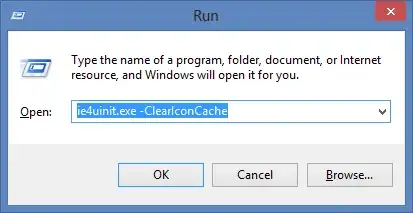
You can just run the following command to clear the icon cache:
ie4uinit.exe -ClearIconCache
For Windows 10, use:
ie4uinit.exe -show
Check this video for a demo.
The following way has worked since Vista; It requires an Explorer restart, but no reboot.
Short version: Stop all explorer.exe instances, delete the user's hidden IconCache.db file, and restart Explorer.
Long Version (there are other ways as well):
Close all Explorer windows that are currently open.
Launch Task Manager using the CTRL+SHIFT+ESC key sequence, or by running taskmgr.exe.
In the Process tab, right-click on the explorer.exe process and select End Process.
Click the End process button when asked for confirmation.
From the File menu of Task Manager, select New Task (Run…)
Type CMD.EXE, and click OK
In the Command Prompt window, type the commands one by one and press ENTER after each command:
CD /d %userprofile%\AppData\Local
DEL IconCache.db /a
EXIT
In Task Manager, click File, select New Task (Run…)
Type EXPLORER.EXE, and click OK.
Warning: It's important that Explorer.exe not be running when you delete the IconCache.db file. If explorer is running, it will simply write out the current (corrupt) icons the next time it is shut down (e.g. when you logoff, shutdown, or restart).
taskkill /IM explorer.exe /FCD /d %userprofile%\AppData\LocalDEL IconCache.db /aexplorer.exe via Task Manager

Create a .bat file and paste the following lines in it and then run it.
taskkill /f /im explorer.exe
cd /d %userprofile%\AppData\Local
del IconCache.db /a
start explorer.exe

There's a clean way to close the Explorer.exe instance which shows the taskbar and the Desktop icons.
You have to popup the classic Shutdown dialog window. The only common way I found to accomplish this is:
Leave at least one pixel of Desktop background free of overlapping Windows, then click on it to focus on the Desktop itself (the one with the icons).
Press ALT + F4 keyboard shortcut: then the classic Shutdown dialog will appear.
Now, press and hold CTRL+ALT+SHIFT and click on Cancel.


If you don't want to make a .bat, copy the line behind, press Win+R, paste it and press Enter.
cmd /c taskkill /f /im explorer.exe & del /a %userprofile%\AppData\Local\IconCache.db & start explorer
You can also paste it in the address bar of an explorer window; and, of course, in a command line window (you don't need the cmd /c then) but you won't have the line to easily repeat it in case you need it again.
CAVEAT:
Don't run this line in an elevated prompt unless you're sure you are the only user in the system or you will kill explorer in all open sessions. Therefore, don't press Shift+Ctrl+Enter in the Run dialog box.
By the way, I don't see the need of the cd /d command I see repeatedly. It seems everybody just copy/paste without considering what are the commands for.
Note:
I use & instead of && just in case one of the commands fails, to ensure explorer is restarted.

Though not a userland answer, simple call to
SHChangeNotify(SHCNE_ASSOCCHANGED, SHCNF_IDLIST, NULL, NULL);
does that [1]. Possibly someone would create an utility to do just that; currently, using 7-zip and trying to modify file associations (for all users; without elevating permissions; which would fail and tell that operation failed) calls the notifications and rebuilds the icon cache.
Oh, just saw the comments to the accepted answer, where the call is discussed, and a tool for that is mentioned: https://github.com/crazy-max/IconsRefresh.
[1] https://docs.microsoft.com/en-us/windows/desktop/api/shlobj_core/nf-shlobj_core-shchangenotify

ie4uinit.exe as suggested by Elmo is a good option because it is available on every system already. I had trouble with it not refreshing sometimes in a complex batch file I have. Nircmd is a great alternative that worked for me.
This is the command I used that worked: nircmd shellrefresh

If you want a complete refreshed icon cache, go to the addressbar of windows explorer and type "C:\Users*Username*\AppData\Local" and then delete IconCache.db.
**Note:**It may be a hidden file. So I recommend turning Show Hidden Files on in Folder Option.
Not very beautiful but effective:
C:> tskill explorer


