31

In windows 7 when browsing through the alt+tab thumbnails, lingering on one thumbnail for a second will engage the Aero-Peek effect causing every window to be transparent except for the chosen window.
This effect is slightly delayed before starting for the first time of each alt+tab “session”, and afterwards will be applied quicker as you browse through the thumbnails.

Is there a way to change the value of that initial delay?
And maybe even that of the subsequent faster delays?

Eran
  • 3,421
  • 5
  • 34
  • 33
  • See also http://superuser.com/questions/72946/disable-or-delay-alt-tab-aero-peek-effect-in-windows-7 – swref May 26 '13 at 10:11

6 Answers6

34

Okay I've found the answer. Someone was kind to share some knowledge on my post at the Microsoft forum:

Open Registry Editor and create the following registry key:

HKEY_CURRENT_USER\Software\Microsoft\Windows\CurrentVersion\Explorer\AltTab.

In that key, create the following DWORD value: LivePreview_ms and set it to the delay (in milliseconds) of the first live preview.

Restart Explorer to see the changes.

Other Aero-peek related registry entries that I've found on the net are:

HKEY_CURRENT_USER\Software\Microsoft\Windows\CurrentVersion\Explorer\Advanced
  • DesktopLivePreviewHoverTime
  • ThumbnailLivePreviewHoverTime
  • ExtendedUIHoverTime

These control the delay of other components of Aero-peek.

Gaff
  • 18,569
  • 15
  • 57
  • 68
gnz
  • 556
  • 4
  • 6
  • 1
    This doesn't work for me. :( – Derek Morrison Feb 24 '12 at 22:05
  • In Windows 7, simply turning off "Enable Aero Peek" in the "System" / "Advanced System Settings" / "Performance Options" dialog works well, and doesn't require you to restart Explorer. – Glen Little Feb 22 '14 at 16:24
  • I must warn this doesn't work with zero - that disables it totally. I set mine to 1ms. Sure helps me figure out which terminal window I'm switching into. – kavisiegel Jul 15 '14 at 04:32
  • Is it just me, or does this seem to have an internal maximum of 3 seconds or so? I tried setting to 5, then 8 (registry + reboot), but the delay seems to max out. – Marc L. Oct 20 '17 at 14:07
5

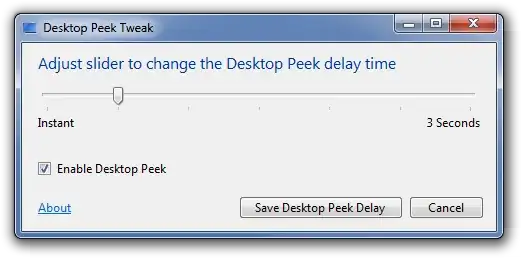
This free product might solve your problem : Desktop Peek Tweak. I quote:

This is a quick utility to adjust Desktop Peek delay time when you hover the mouse over the appropriate button on the desktop

image

Gaff
  • 18,569
  • 15
  • 57
  • 68
harrymc
  • 455,459
  • 31
  • 526
  • 924
3

You can turn off via windows config menus:

Windows 7 ALT-TAB - How to turn off previewing the window

David
  • 31
  • 1
0

if you press ALT + CTRL + tab you can freeze the dialog up till you click out or select a window.

mjrider
  • 549
  • 1
  • 6
  • 21
  • This isn't really relevant to what is asked. But moreover a long time ago this [question] was already answered and the accepted answer is good, there is no need to add answers such as yours (no offence, I hope). – Eran Apr 29 '11 at 17:03
  • its just a way to increase the time the window will stay up...not the exact answer and none taken. – mjrider Apr 29 '11 at 17:07
  • 1
    Interesting, I never knew this before! I agree with @Xenorose that the answer doesn't quite fit the question, but that is a good tip. – nhinkle Apr 29 '11 at 18:17
  • it works the same way with windows key + ctrl + tab too – mjrider Apr 29 '11 at 19:31
  • @Xenorose - Although the question is answered for the original party, these answers are very helpful for others visiting this page. Even if the question was old - the answers are new - topic resurrection is despised amongst message board users because it brings the post back to the top of the activity list - but it's a genuinely good practice on sites like SO and SU to provide updates as the information changes or to fill in gaps in the overall picture. It's ok to ease up on policing this behavior. – Marcus Pope Jun 01 '11 at 16:49
  • @Marcus Pope, you have a good point about topic resurrection and I agree that if new or updated info is available it should be added to old posts, but that's not the same as "off-topic but similar subjects". Too much irrelevant info just clutters the page. Finding information serendipitously is nice but not the main point of the site [IMO]. I think an answer such as mjrider would have been better posted as comment to the question than an answer (if at all). – Eran Jun 07 '11 at 09:55
  • I belive my answer does actualy give a answer to > Is there a way to change the value of that initial delay? >And maybe even that of the subsequent faster delays? because it does stay up LONGER then before...it stays up till you chose to stop it. and there is NO software added or used other then built in features. which someone MAY prefere – mjrider Jun 08 '11 at 15:55
  • No, this suggestion only changes the behavior to be "hands free" until a window is selected (`Enter`) or user quits (`Esc`). It doesn't affect the preview delay at all. (Side note: surprising `Key` doesn't work on superuser.) – Marc L. Oct 20 '17 at 13:21
0

This shows multiple methods on how to do it:

http://www.sevenforums.com/tutorials/20337-aero-peek-change-delay-time-preview-desktop.html

It provides a zip with a .reg file to modify the registry and also a manual method of setting it in the registry, but I suspect it does exactly the same thing as Desktop Peek Tweak.

Michael Galos
  • 765
  • 7
  • 16
  • 1
    No, like the other answer, it only changes the delay for the show desktop button, but doesn't affect the delay in the alt+tab. – Eran Sep 23 '09 at 03:19
  • 1
    I was at work so I couldn't test it, I'm actually keen to get what you're asking for as well. – Michael Galos Sep 23 '09 at 05:23
0

Simple solution:

;; Disable Aero-ALT-TAB, use Old-XP-Style.
[HKEY_CURRENT_USER\Software\Microsoft\Windows\CurrentVersion\Explorer]
"AltTabSettings"=dword:00000001

;; Set how many rows are shown in task switcher (ALT-TAB).  Default seems to be 3x7.
[HKEY_CURRENT_USER\Control Panel\Desktop]
"CoolSwitchColumns"=6
"CoolSwitchRows"=5

These settings bring back the old XP-Syle for the task switcher. Used them for few years now on many Windows 7 installations.

Andreas Spindler
  • 249
  • 1
  • 3
  • 10