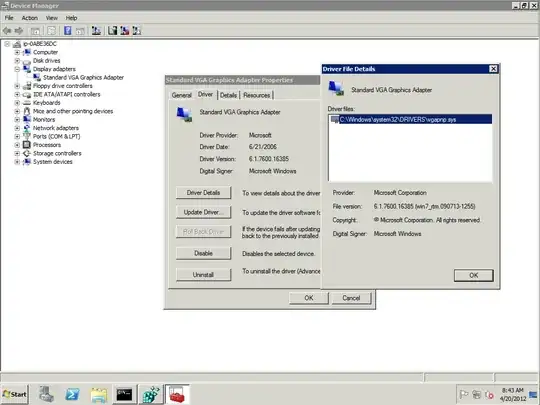
Cannot put comments to the answers or vote, so creating another answer.
Thanks Kenny Trytek, your solution worked!
I am using Windows Server 2022 on AWS ec2 to run Appium tests.
I have one autologged user after start of the ec2, which just starts the Appium process.
When the Appium starts the GUI application, it maximizes and uses the configured resolution, which was set up via the VNC.
After setting the resolution, I have uninstalled the VNC, closed the VNC ports and made a new AMI. Now I do not have to do some fancy stuff with RDP, which did not work for me at all, and also save some resources because of it.
Other things, which I tried, but did not work. E.g. the app was spawned in good resolution, but elements were not visible/clickable, like they were out of the view in some scrollable area.
List:
- Two Windows users, one is autologged, and after login it starts an RDP session to
127.0.0.2 with precofigured resolution as another user, which on the other hand starts Appium on login. (https://outofmemoryexception.wordpress.com/2016/03/29/automate-your-remote-desktop-sessions/)
- or a variant with one user staring Appium, and starting of the RDP is done 'manually' via Appium powershell script before running the tests, e.g.:
mstsc /v:127.0.0.2 /w:1920 /h:1200 /control /admin (you need to have the credentials for that ip saved, as mentioned in the article)
- Using powershell command
Set-DisplayResolution
- Updating registry with video resolution
- setting window size via Appium
- setting window size by powershell script Setting window size and position in PowerShell 5 and 6