295

I'm using windows 7 on a laptop. On the laptop keyboard, for some reason, the quote key (which has both double and single quote on it) is doing some "clever" annoying things:

  1. When I press single-quote (or double-quote), windows doesn't send any characters until I press it twice (resulting in '' or "")
  2. When I press it before a vowel, I get some kind of accented character. As I usually only write English, this is annoying.

The backtick/tilde key is subject to similar behaviour.

This is not a duplicate of the linked question because the two problems have completely different solutions. This question was caused by an internationalisation setting being activated; that other question was caused by keys being set to dead.

I have not attempted to set up my computer to process anything other than English. My keyboard appears to be (in so far as these things are standard on laptops) a standard US qwerty keyboard.

How can I stop this happening?

Marcin
  • 3,225
  • 3
  • 20
  • 24
  • Possible duplicate of [Apostrophes and double quotes don't show up until I type the next letter](http://superuser.com/questions/122625/apostrophes-and-double-quotes-dont-show-up-until-i-type-the-next-letter) – Cees Timmerman Dec 20 '16 at 15:20
  • 1
    Not enough reputation to post an answer, but the problem you're having is that the quotes, double quotes and tilde are set as "Dead Keys". If you want to keep the US International Keyboard but remove the "Dead Keys" functionality you must create and install your own keyboard (or download a ready made one) using [Microsoft Keyboard Layout Creator](https://www.microsoft.com/en-us/download/details.aspx?id=22339). I just opened the US-Interntaional keyboard, removed the dead keys functionality, saved and installed. – Agustín Lado Nov 08 '17 at 21:53
  • 1
    This is an old question, but by using an International Keyboard, I have access to other non-ascii characters. I like it better than the old US keyboard. The system is expecting and waiting for another key press to make an ä, or ê or ù or ç... You must press spacebar after pressing ", if you want just the quote ". The right-alt key also gives access to the International keyboard for € (right-alt 5). Otherwise, convert back to US QUERTY Keyboard. If you press "" twice, the result will return with two "". – CrazyEnigma Mar 05 '19 at 10:17
  • 2
    Does anyone know the logic of what this was actually trying to achieve? How did MS ever think this would make anyone's life easier? How is it meant to be used? – Ryan Jan 15 '20 at 14:43
  • A better way to solve it is to install linux, then you the user will be in control, not windoze. – ejectamenta Aug 29 '23 at 09:21

9 Answers9

267

I would first make sure that your "input method" settings is set to "US" (and definitely not "United States-International"). You can do this through the Control Panel. A restart may be required.

For Windows 7:

  1. Open Control Panel
  2. Click on Clock, Language, and Region, and then Region and Language.
  3. Click the Keyboards and Languages tab, and then click Change keyboards.
  4. Under Installed services, click Add.
  5. Double-click the language you want to add, double-click Keyboard, select the text services options you want to add, and then click OK.

See also:

For Windows 10 and/or Windows 11:

  1. Open Control Panel.
  2. Click on Clock, Language, and Region and then click on Language.
  3. If you don't see a card reading "English (United States)" in the list, click on "Add a language" on the toolbar to add it.
  4. On the same row belonging to the "English (United States)" card, make sure there is a line reading "Keyboard layout: US". If it does not (that's the assumption of this answer), click on the "Options" hyperlink belonging to the same line, to the left.
  5. In the "Input method" section, click on the "Add an input method" hyperlink to add a keyboard layout called "US". Delete any other installed input methods pertaining English.

See also:

david.barkhuizen
  • 1,730
  • 2
  • 13
  • 14
Ahmed
  • 2,907
  • 1
  • 14
  • 8
  • 8
    Thank you! I didn't realise that these settings required a restart to take effect. – Marcin Oct 13 '11 at 12:40
  • 6
    Yeah, one thing I've learned is that it never hurts to log off and back on when you are playing around with the control panel settings, computer management, or windows registry (however annoying it can be :) ). – Ahmed Oct 13 '11 at 12:42
  • 3
    I stop and start explorer via the run window "cmd /c taskkill /f /im explorer.exe & explorer". Most of the times it will allow changes to many things to take effect. That works on XP should work on 7 and 8 – Michael Mantion Jan 05 '15 at 07:54
  • 3
    BEWARE! You will lose pound sign `£` (`AltGr+Shift+4`) by switching from `United States-International` to `US` layout, but it will solve aforementioned annoyance. – igor Jul 31 '17 at 10:12
  • This doesn't work if you want to keep the International keyboard (for AltGR functionality). The only choice is to use [Microsoft Keyboard Layout Creator](https://www.microsoft.com/en-us/download/details.aspx?id=22339) to create a custom US International Keyboard without Dead Keys. – Agustín Lado Nov 08 '17 at 21:52
  • 4
    "..and definitely not "United States-International." You just saved me from hundreds of hours of suffering. Thank you! – golosovsky Aug 26 '18 at 19:04
  • Indeed, removing the other input methods was essential for me. – myradio Jul 12 '19 at 08:13
114

In the case of Windows 8/10 (not the question, I know) - these accent keys are active when the keyboard is US International (US INTL), and will be deactivated if you change to US ENG.

You can switch between the two using the short-cut WindowsKey + Space.

Also, if you look at the desktop taskbar (bottom of screen) - to the left of the Date/Time display, you should see a tile displaying the current keyboard (in this case US ENG or US INTL) - click on it to bring up a selector.

david.barkhuizen
  • 1,730
  • 2
  • 13
  • 14
  • 6
    Worked for me, I was working with Sublime Text editor and it was driving me crazy while programming. Thanks! – Șerban Ghiță Nov 03 '14 at 19:21
  • 1
    This is really a PITA when you're used to work with Mac OS ... Apple Key-Space means "Spotlight search" there, so I press it frequently in Windows .. – TheEye Nov 09 '15 at 11:33
  • 1
    Left alt + left shift was bound to change keyboard languages for me in Windows 7. (Shortcut should be listed in the window where you add more keyboard languages). Changed to non-international map and it's back to normal, thanks. – aportr Jan 08 '16 at 12:13
  • In my case US Eng was active and I still had the issue. I fixed it by selecting International from the language bar and then immediately selecting US Eng again. – misterManSam Aug 17 '16 at 01:49
  • 4
    +1 The short-cut `WindowsKey + Space` is working in `Windows 10` too. Thanks :) – Krishna Mohan Nov 02 '16 at 15:00
  • Quick solution without links to outside. Thanks! – ZygD Jan 17 '18 at 11:01
  • 2
    "You can switch between the two using the short-cut "WindowsKey + Space"." This saved the day for me. Was on the verge of rebooting my webserver thinking that would fix it, but I'm glad it wasn't necessary. (This worked on Windows Server 2012) – Vincent Jun 09 '18 at 21:43
  • This should be the accepted answer, it's much easier than diving deep into the Windows language settings. – Jesse Reza Khorasanee Apr 29 '19 at 00:03
  • In case it helps others in the future, I'll add that someone (perhaps family or a cat) must have accidentally changed my keyboard settings to switch between `ENG` English (United States) / US Keyboard the local setting (`NLD` in my case). The keyboard shortcut *Windows* + *Space* is important because I doubt many users _intentionally_ use the Control Panel to change keyboard settings (or at least not the ones who need to find out how to switch the setting!). :-) – Alvin Reyes Jun 07 '20 at 06:39
  • Is there a way to disable this shortcut? The fact it exists as default makes me feel violent inside. – BitShift Jul 23 '21 at 11:14
  • Thanks, this worked on win11 as well. – Czar Mar 27 '23 at 18:02
14

You probably inadvertently pressed ctrl shift '.

This is a windows shortcut that affects some applications (examples include: mIRC, gtalk, wordpad, etc) and causes the behavior you are describing. Pressing the shortcut again or restarting the computer will disable it (and hence Dmnisih's answer is incorrect).

Andreas Bonini
  • 1,135
  • 5
  • 16
  • 28
  • Does your list include cmd and xemacs running under cygwin? If not, then your diagnosis is incorrect. – Marcin Oct 13 '11 at 17:29
  • SharePoint Designer 2010 is also affected by this shortcut. – MrChrister Feb 24 '15 at 17:00
  • @Marcin Anything that uses a win32 rich text input would be affected by this. CMD does, and IIRC GTK running under cygwin does. The diagnoses is correct. – Tritium21 Apr 01 '18 at 02:30
12

Windows 10 here.

Windows Key + Space did not work for me. It changed between languages - not keyboards. This is how I solved the problem:
  1. Opening Settings.

    • Windows Key + I (like India)
    • OR Start > Settings
  2. "Time & Language"

  3. "Region & language"
  4. Under "Preferred languages" click on English > Options
  5. "Add a keyboard"
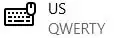
  6. You need to use the one which says "US" (not "United States-International"):
    US keyboard
ZygD
  • 2,459
  • 12
  • 26
  • 43
7

If you press space after the quote then it will be as if you have only the one quote

rupweb
  • 273
  • 3
  • 7
5

It typically happens when one accidentally hits the left Ctrl and right Shift keyboard keys.

The way to recovery is in hitting these Ctrl-Shift keys two more times.

It has been illustrated nicely at http://www.pctips.smittystips.com/v_laptop_keyboard_errors.php

Arthur
  • 179
  • 1
  • 2
  • Wow, thanks! A simple fix for me when my keyboard was already selected as US English. I almost skipped your suggestion thinking it couldn't possibly be right! :) – pcdev Mar 05 '18 at 12:10
4

Here’s how I fixed it:

  1. Open the Regional and Language Options control panel.
  2. Click on the Keyboards and Languages tab.
  3. Click on the Change Keyboards button.
  4. Remove all the installed keyboards until none are left except English US.
  5. Restart your computer.
Pascal
  • 181
  • 1
  • 9
  • 3
    Usually "International" variants of keyboards cause have this behaviour. Note that you cannot remove keyboard which is currently selected and the restart is not probably needed. (but Windows often surprise me with requested reboots) – pabouk - Ukraine stay strong Jan 24 '14 at 13:27
1
  1. If you press " once, followed by Space bar, it gives ' without a space next to it.
  2. If you press ", while holding Shift, and then press Space bar, you get " without a space next to it.
  3. If you press " followed by a consonant, then you get the same result as (2). For example:

    ", followed by m, gives 'm.

    Shift+", followed by m, gives "m.

jaydeepsb
  • 135
  • 1
  • What solution/action are you suggesting? – meatspace Jan 28 '15 at 15:42
  • What I am suggesting is, the space-bar will do the trick. There is no need to change the Region and Language setting, 'because' this problem occurs, in general case, on any keyboard layout. – jaydeepsb Jan 29 '15 at 11:43
  • 1
    Your answer is really difficult to read and could be improved if you edit it and use `space` and `"` so that it formats the names of keyboard keys to make them easier to read. – Ryan Feb 27 '18 at 15:52
  • 1
    Thanks for describing the misery of the original poster in so many words. Still, this is not an answer to the question of "How can I stop it?" Downvoted. –  May 16 '18 at 05:21
-4

For WinXP

Open RUN window (winbutton + r) type the following line and press enter

cmd /c intl.cpl ,1 & taskkill /f /im explorer.exe & explorer

Click "detail"

Highlight and remove all keyboards except US

Click OK twice and you should be done

Michael Mantion
  • 780
  • 4
  • 8