11

On my work PC, when I copy+paste some text between two applications, the rich-text formatting from the first application is preserved when the second receives it. For example, if I am copying from an Outlook message that contains size 10 Tahoma to a Word document which is formatted in Size 12 Arial, the pasted text will be size 10 Tahoma.

I don't want this to happen. I never want the second application to format the text to what it was at the source of the copy.

I suspect this is an OS level setting, because on my home PC, this does not happen at all.

I could configure each application to receive only plain text from pasting, but the optimal solution I believe would be disabling any RTF data in the clipboard itself. Right now my solution is to first copy to notepad to "sanitize" the clipboard text of any RTF data, then copy it to the second application. But this is somewhat tedious.

user13137
  • 1,010
  • 2
  • 10
  • 19
  • When you copy-paste in Word, you can select text only, source format or destination format. And you can also set a default paste mode. In 2010, at least. – Ariane Apr 13 '13 at 01:55

5 Answers5

7

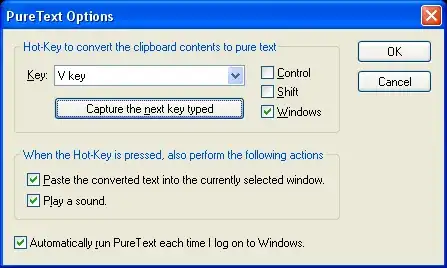
Take a look at PureText. I don't think there is a specific "OS-level setting" for disabling rich text in the clipboard, but the goal of PureText is to do exactly that.

It also gives you the flexibility of setting custom hotkeys for converting text to plain text format. By changing the hotkey to Ctrl-v, you can paste and convert the text in one shot.

enter image description here

Compatible with Windows 95 and up. PureText is freeware.

John T
  • 163,373
  • 27
  • 341
  • 348
2

Press Ctrl+Alt+V in Word to Paste Special, i.e. paste without formatting.

Daniel Beck
  • 109,300
  • 14
  • 287
  • 334
  • i was looking for a general solution (agnostic to application receiving), but thank you – user13137 Jan 26 '11 at 21:59
  • @user You could try to check your other applications (Word was probably a bad example :-) ). Maybe they support a similar shortcut. While not as thorough as a system-wide setting, it'd be a bit more flexible. – Daniel Beck Jan 26 '11 at 22:02
  • 1
    Many applications nowadays support ctrl+shift+v as "past as plain text". – Nyerguds Dec 08 '16 at 13:26
1

I use Notepad to drop all the formatting

  1. Copy (Ctrl-C) the stuff you want
  2. Open Notepad
  3. Paste (Ctrl-V) into Notepad
  4. Select all (Ctrl-A) from Notepad
  5. Paste (Ctrl-V) into destination
Carl B
  • 6,660
  • 16
  • 46
  • 66
Mike
  • 11
  • 2
  • +1. Step 2b - ctrl-a in case note pad already open with earlier similar op :) – tgkprog May 15 '15 at 07:21
  • 2
    for single-line pieces of text, I use a variant which is to use windows+r at step 2. you can use the "run" box as a text field and after copying it back out again, press escape to dismiss it without the text being saved in the command history. – Andy Jun 08 '16 at 15:41
1

Use auto hot key, put a hook on clipboadrd change, get clipboard contents to a var, clear the clipboard and then set it back to clipboard. so the RTF will be lost.

Downside - looks like wont be able to copy files too. but can switch off script when you need to do that

see http://www.autohotkey.com/docs/misc/Clipboard.htm

tgkprog
  • 206
  • 2
  • 11
0

The fastest way I've found to do this is to take advantage of Windows search. There's just a bit of dancing with your left hand - no opening extra programs.

  1. Copy (Ctrl-C)
  2. Open and shift focus to Windows search (Win)
  3. Paste (Ctrl-V)
  4. Select all (Ctrl-A)
  5. Copy (Ctrl-C) again
  6. Paste (Ctrl-V) to destination

Regarding tgkprog's answer, keep in mind that you have to jump through some extra hoops to get AHK able to work with programs running with Admin privileges. I suspect this would also apply to John T's answer and PureText.

Sarkreth
  • 111
  • 2