43

I have a largish PSD file with a couple of hundred layers, that I would like to extract selected areas from into PNG files.

Areas can consist of a couple of layers.

Being new to Photoshop, I have been using the following workaround. Duplicate needed layers into a new scratch PSD file of same size, TRIM to transparency, Save As PNG, undo TRIM, hide layers, rinse and repeat...

I suppose I could do it without the scratch file and just crop selection, Save As PNG and undo, but there must be a nicer method.

What other ways are there to accomplish this export of a selected area to PNG?

EDIT: This is on Windows Xp running Photoshop CS3 Extended

Aniti
  • 811
  • 3
  • 10
  • 18

4 Answers4

53
  • Make your selection
  • Edit -> Copy Merged
  • File -> New (Photoshop should automatically suggest a new canvas size to match the selection size)
  • Edit -> Paste
  • File -> Save As (PNG)
  • Rinse and repeat... (keyboard shortcuts are handy here)

(Tested on Photoshop CS4)

Mike Fitzpatrick
  • 16,789
  • 4
  • 46
  • 48
  • 26
    Photoshop engineers should seriously think about improving this because it's tedious to do something so simple with 6 steps, it should have, at most, 2 steps, select and export. simple isn't it ? – Pedro Lobito May 15 '12 at 15:50
  • 6
    I beta test for Adobe for almost 10 years. I have asked for a new interface every single year. Photoshop UI is obtrusive, annoying, vintage from the nineties. At one time someone there asked me to stop asking for this stuff, because I was filling too many feature requests and creating "noise" on their system. How can I company bash a beta tester for suggesting improvements is beyond me. – Duck Jan 13 '14 at 08:33
  • Keyboard shortcuts for these steps: 1. `ctrl + shift +c`, 2. `ctrl + n`, 3. `ctrl + v`, 4. `ctrl + s`. 5. `ctrl + w` – Mahn Jul 22 '18 at 19:55
19

Try selecting the areas with the Slice tool and then File > Export for web & devices.

Tomas Andrle
  • 3,092
  • 4
  • 31
  • 32
  • I have been using this method more and more as compared to the original answer. Presumably, this is what Photoshop developers intended to be used for this particular problem. – Aniti Sep 04 '12 at 08:18
  • +1 better than the accepted answer, especially if you need to repeat this procedure a lot. – Amir Uval Apr 14 '15 at 17:04
  • 1
    this doesn't work for any selections that aren't rectangular and parallel to the edges of the image, whereas the above method works for all shapes and sizes – Lucas Jan 02 '16 at 00:22
  • @think123 True. Yet the resulting PNG is still rectangular. You could use a mask to make the shapes you want to have in the resulting Slice export. – Tomas Andrle Jan 02 '16 at 23:16
  • @TomasAndrle I am trying to extract scanned pictures - I have scanned four or so images together onto one large scan file, except these pictures were not positioned exactly straight, so it's difficult for me to slice them effectively. – Lucas Jan 02 '16 at 23:20
3

I tackled this by creating a script that I put in Presets\Scripts\Export Selection to PNG.jsx

The code as follows:

app.displayDialogs = DialogModes.NO;

var pngSaveOptions = new PNGSaveOptions();
pngSaveOptions.compression = 9;

var hasSelection;
var docRef;
try {
    hasSelection = !!app.activeDocument.selection.bounds;
} catch (err) {
    hasSelection = false;
}

if (hasSelection) {
    app.activeDocument.selection.copy(true);
    var w = app.activeDocument.selection.bounds[2];
    var h = app.activeDocument.selection.bounds[3];
    docRef = app.documents.add(w, h);
    docRef.paste();
} else {
    docRef = app.activeDocument;
}
var file = File.saveDialog("Export as PNG to...");
if (file && ((file.exists && confirm("Overwrite " + file +"?")) || !file.exists)) {
    docRef.saveAs(file, pngSaveOptions, !hasSelection, Extension.LOWERCASE);
    if (hasSelection) {
    docRef.close(SaveOptions.DONOTSAVECHANGES);
    }
}

The script above will handle no-selection as a "select all" and checks if the target file exists confirming an overwrite.

This script is triggered from the File->Scripts->Export Selection to PNG

Archimedes Trajano
  • 1,505
  • 1
  • 15
  • 21
  • I improved Archimedes' answer by making the new document call open on a transparent background, and by trimming before the save. You can find the updated script here: https://pastebin.com/tmk2h8yp – Emperorlou Jul 07 '22 at 18:47
  • app.activeDocument.selection.bounds contains [xMin, yMin, xMax, yMax], so var w = app.activeDocument.selection.bounds[2] - app.activeDocument.selection.bounds[0]; var h = app.activeDocument.selection.bounds[3] - app.activeDocument.selection.bounds[1]; – networm Jul 24 '23 at 03:24
-1

Make a selection. Then hit Ctr or CMD + J to copy that selection into a new layer. then:

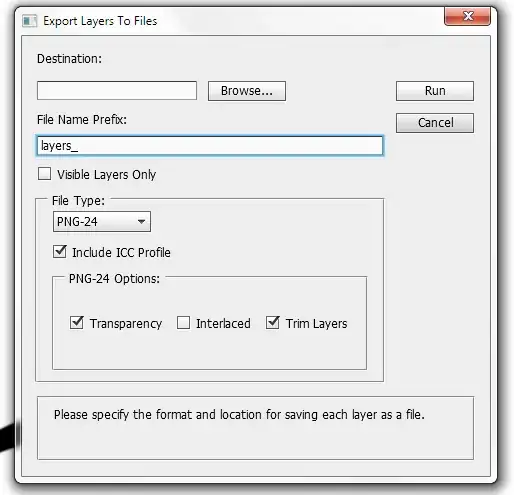
File -> Scripts -> Export Layer to Files...

Export Layers to files

If your layer is smaller than the full width/height of the canvas don't forget to check Trim Layers.

Pedro Lobito
  • 784
  • 1
  • 9
  • 19
  • 1
    The question is not about exporting layers to files. It is about saving a selection as a file. The question specifically states "Areas can consist of a couple of layers." – Mike Fitzpatrick May 19 '12 at 05:35