How to set the default program for opening files without an extension in Windows?
Asked
Active
Viewed 1.1e+01k times
151


-
Accepted answer worked but at the same time made other feature stop working; [Choose Default Program does not work (is broken) on Windows](http://superuser.com/questions/69193) – Piotr Dobrogost Jun 13 '10 at 11:00
-
Which feature stopped working? – Danijel Dec 23 '16 at 13:25
-
In my case, running the following two commands worked: `assoc .="No_Extension"`, and `"No_Extension"="C:\programs\npp\notepad++.exe" "%1"`. For most people (assuming 32-bit), the second command should probably be `"No_Extension"="C:\Program Files (x86)\Notepad++\notepad++.exe" "%1"`. – Henke Feb 19 '23 at 18:13
11 Answers
182
With the command line:
assoc .="No_Extension"
ftype "No_Extension"="C:\path\to\my editor.exe" "%1"
Restart the computer for the changes to take effect.
To give credit, I learned this from the vim wikia here and here
Extra info:
Instead of "C:\path\to\...", the following macros may be useful:
%SystemDrive%- drive windows is installed on, i.e.C:\%ProgramFiles%- e.g."C:\Program Files\"%ProgramFiles(x86)%- e.g."C:\Program Files (x86)\"
You will need to properly escape them though:
ftype "No_Extension"=^"^%ProgramFiles(x86)^%\Notepad++\notepad++.exe^" "%1"
To set the icon to be the same as .txt files (I didn't do this, since it automatically made the files' icons display as Notepad++ files):
assoc "No_Extension"\DefaultIcon=%SystemRoot%\System32\imageres.dll,-102
To undo, you can read the assoc /? or ftype /? information, e.g.:
ftype "No_Extension"=
assoc "No_Extension"\DefaultIcon=
assoc .=


-
Offtopic, but try giving, for example, `no_ext\DefaultIcon` as the first argument to `assoc`. It isn't limited to just extensions. – u1686_grawity Jul 28 '09 at 07:04
-
4Note that if your editor is in a folder that contains a space (such as "C:\Program Files") you need to put it into quotes. `ftype no_ext="C:\Program Files (x86)\Notepad++\notepad++.exe" "%1"` – GuiSim Nov 08 '11 at 16:19
-
14
-
2OK, one more: in the above example, `no_ext` is what Windows Explorer will display in the 'Type' column for such files. I think a more readable description would be better, so I used `"No extension"` , including the double quotes, instead of `no_ext` in the above commands. – Cristian Diaconescu Oct 09 '12 at 09:26
-
3Here's how I set the icon for .txt files for files with no extension (thanks @grawity for the pointer and idea): `assoc "No extension"\DefaultIcon=%SystemRoot%\system32\imageres.dll,-102` – Cristian Diaconescu Oct 09 '12 at 09:35
-
-
This worked for me. `assoc .=no_ext` `ftype no_ext="C:\Program Files (x86)\Notepad++\notepad++.exe" "%1"` – cokedude Feb 12 '15 at 02:45
-
1Not mentioned yet, so wanted to note this worked for me on on Windows 10. As suggested by Cristi Diaconescu, it was required to right click `cmd` and select `Run as administrator`. – Adam Smith Aug 17 '16 at 17:16
-
5This is not working for me in Windows 10. Some notes: 1) It would not find `assoc` in PowerShell, so `cmd` is required. 2) It was throwing an error when not running as admin, so I ran as admin. The command runs without throwing an error, but does not appear to have done anything. I rebooted afterwards too. – JamesFaix Apr 05 '18 at 13:31
27
Normal files with an extension can have a program associated however this is not the case with files that don't have an extension. If you double click on one and select an application and check the box to always use that application it is ignored and every time you select a file you have to choose the application.
You can force this using the registry:
- Start the registry editor (regedit.exe)
- Move to HKEY_CLASSES_ROOT
- From the Edit menu select New - Key
- Enter a name of '.' and press Enter (don't type the quotes)
- Select the new '.' key
- Double click the (Default) value
- Change to the HKEY_CLASSES_ROOT used to open, e.g. NOTEPAD for the notepad.exe application NOTEPAD
- Click OK
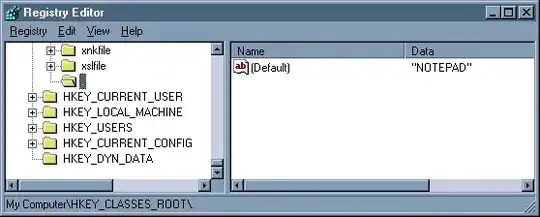
If you now double click on a file with no extension it will open with the application selected.
To check what an existing application used look at its entry under HKEY_CLASSES_ROOT, e.g. HKEY_CLASSES_ROOT.doc uses Word.Document.8 so if you wanted this as your default editor you would change HKEY_CLASSES_ROOT.(Default) to Word.Document.8.
Any method which avoids the need to edit the registry is as follows:
- Open Explorer - View - Folder Options... - File Types - New Type:
- Description of type: Text (any description, you can type in)
- Associated extension: . (just a period)
- Actions: - new...
- Action: open
- Application used to perform action: c:\winnt\notepad.exe
- Click ok, then ok again

Gaff
- 18,569
- 15
- 57
- 68

Ivo Flipse
- 24,696
- 32
- 103
- 147
-
There's something wrong with above info. I have .xml files set to open with Notepad++ but (Default) entry for .xml is set to xmlfile... – Piotr Dobrogost Jul 27 '09 at 19:49
-
I don't really understand what you mean, but I'm afraid I wouldn't know a solution either... – Ivo Flipse Jul 27 '09 at 19:50
-
4@Piotr: If the default entry of `HKCR\.xml` is `xmlfile`, it means the shell (Explorer) needs to go to `HKCR\xmlfile` and read information from *that* key. – u1686_grawity Jul 28 '09 at 07:02
-
@Ivo When I look into .txt entry in the registry to check how it looks like (I have .txt files opened by Notepad++) the default entry has "txtfile" value. There's no trace of Notepad++ nowhere in this registry key. What am I missing? – Piotr Dobrogost Sep 16 '09 at 16:35
-
Do you mean it doesn't use Notepad++ now? Since you should be able to set it as NotePad if you know the extension or create it yourself – Ivo Flipse Sep 16 '09 at 17:49
-
@grawity Does it work recursively? `HKCR\xmlfile` has `(Default)` set to `XML Document` and there's no such an entry as `XML Document` in HKCR. No trace of Notepad++ (which **is** the default program for xml files) in `HKCR\xmlfile` as well. There is `HKCR\xmlfile\shell\Open\command` set to `"%ProgramFiles%\Internet Explorer\iexplore.exe" -nohome` but it apparently has no effect as xml files are being opened in Notepad++ by default. – Piotr Dobrogost Sep 23 '09 at 11:49
-
@Ivo .txt files are being opened by Notepad++ but there's no trace of Notepad++ neither in `HKCR\.txt` which has `(Default)` set to `txtfile` nor in `HKCR\txtfile` which has `(Default)` set to `Text Document`. In this case I don't know what to put in `(Default)` of `HKCR\.` to have files without an extension opened in Notepad++ the same way I have .txt files opened by this program. – Piotr Dobrogost Sep 23 '09 at 12:10
-
@Piotr I'm sorry, but I fear you reached the borders of my knowledge on this problem. Have you tried the method of hasen j? – Ivo Flipse Sep 23 '09 at 12:41
-
@Ivo It worked but at the same time made other feature stop working; http://superuser.com/questions/69193/choose-default-program-does-not-work-is-broken-on-windows – Piotr Dobrogost Jun 13 '10 at 10:44
-
@Ivo Is this valid for Windows 7? I keep attempting to set gVIM as my default editor and going through these steps does nothing for me. – erik Aug 23 '11 at 14:10
15
This is an example of .reg file for getting Notepad to open unknown file extensions. Create a new text file with an extension of .reg, cut and paste this into it, then double click to run and it'll put it into the registry.
Windows Registry Editor Version 5.00

[HKEY_CLASSES_ROOT\Unknown\shell]
@="notepad"

[HKEY_CLASSES_ROOT\Unknown\shell\notepad]
@="Open with Notepad"

[HKEY_CLASSES_ROOT\Unknown\shell\notepad\command]
@="C:\\WINDOWS\\NOTEPAD.EXE %1"

Pauk
- 984
- 1
- 7
- 18
-
1There's something wrong with the above info. When I click newly created .reg file I get "The specified file is not a registry script" error. – Piotr Dobrogost Jul 27 '09 at 19:54
-
-
This works in Explorer but does not work in Total Commander which should behave (and always has) identically to Explorer in this regard. Any thoughts? – Piotr Dobrogost Sep 23 '09 at 12:36
-
The idea that you should have to set file associations for EVERY unknown file in Windows is insane. Well done sir! – Zombo Mar 30 '12 at 21:26
-
7
Can't believe nobody has said this yet. You don't need to provide a path to your text editor like the accepted answer says.
Just run the following in an admin command prompt:
assoc .=txtfile

CoolOppo
- 255
- 3
- 5
-
2God that's the right answer! Less complexity is better.. Thanks – Alexandre Daubricourt Mar 15 '20 at 10:38
-
-
1@Danijel Yes, just did it again the other day on a new install if Windows. – CoolOppo Jun 02 '20 at 02:12
-
1LOL. This works. Can't believe the best answer was the simplest one.... – pablorenato Oct 06 '21 at 00:23
-
1
6
Most of these solutions didn't work for me on Windows 8.1. I got it working by doing the following (this should work for Windows 7 and Windows 10 as well):
Follow hasnj's solution: First open an elevated command window and type
assoc .="No Extension"
ftype "No Extension"="C:\path\to\my editor.exe" "%1"
Open regedit and navigate to
HKEY_CURRENT_USER\Software\Microsoft\Windows\CurrentVersion\Explorer\FileExts\.Right click and add a new key called
UserChoiceif it doesn't already exist.In the new UserChoice key, right click and create a new String Value called
Progid. Set its value to "No Extension" (without the double quotes).

u01jmg3
- 306
- 1
- 6
- 14

Amol Randhawa
- 61
- 1
- 1
-
This isn't working for me on Windows 8.1 unfortunately. I tried killing and restarting explorer.exe afterwards - is there something else I need to do? In the HCU entry you mentioned I now have `OpenWithList`, `OpenWithProgids` and the one I added, `UserChoice`. – Conan Apr 13 '15 at 15:38
-
1Possible key mistake in article **3.** `No Extention` should be `No Extension`? – JosefZ Nov 19 '16 at 19:21
4
For those of you on Windows 11 looking to use Notepadd++, this worked fine. Open an administrator command prompt and paste the following:
assoc .="No Extension"
ftype "No Extension"=^"^%ProgramFiles^%\Notepad++\notepad++.exe^" "%1"
assoc "No Extension"\DefaultIcon=%SystemRoot%\System32\imageres.dll,-102
Note: This is for the x64 version, hence 'Program Files' and not 'Program Files (x86)'
This is very helpful for Dockerfiles.

regbo
- 41
- 1
-
-
This works great but the icon is the default .txt file icon instead of the Notepad++ icon. – hb20007 Jan 16 '23 at 12:48
3
You can also use NirSoft FileTypesManager:
FileTypesMan is an alternative to the 'File Types' tab in the 'Folder Options' of Windows.
FileTypesMan also allows you to easily edit the properties and flags of each file type, as well as it allows you to add, edit, and remove actions in a file type.


2
Pauk's answer didn't work for me, I had to use instead:
Windows Registry Editor Version 5.00
[HKEY_CLASSES_ROOT.] @="No Extension"
[HKEY_CLASSES_ROOT\No Extension]
[HKEY_CLASSES_ROOT\No Extension\Shell]
[HKEY_CLASSES_ROOT\No Extension\Shell\Open]
[HKEY_CLASSES_ROOT\No Extension\Shell\Open\Command] @="C:\\pathtoexe\\yourexe.exe %1"
Note the double backslashes on the exe path.

79E09796
- 275
- 2
- 11
1
The other answers are a bit outdated. Here is a link to one that works for Windows 7:
Shell Extensions for File Names with No File Extension
Shell extensions for file names with no file extension can be registered under the following:
[HKEY_CLASSES_ROOT\.]
           For example, to associate a program (for example, Notepad.exe) to open all files with no extension, use the following registry keys:

[HKEY_CLASSES_ROOT\.]
@=""

[HKEY_CLASSES_ROOT\.\shell]

[HKEY_CLASSES_ROOT\.\shell\open]

[HKEY_CLASSES_ROOT\.\shell\open\command]
@="<path to notepad.exe> %1"
           Here is an alternative method:

[HKEY_CLASSES_ROOT\.]
@="NoExtFile"

[HKEY_CLASSES_ROOT\NoExtFile]

[HKEY_CLASSES_ROOT\NoExtFile\shell]

[HKEY_CLASSES_ROOT\NoExtFile\shell\open]

[HKEY_CLASSES_ROOT\NoExtFile\shell\open\command]
@="<path to notepad.exe> %1"


0
Using PowerShell:
This is for Notepad++
Admin required
No reboot needed
New-PSDrive -Name HKCR -PSProvider Registry -Root HKEY_CLASSES_ROOT

New-Item -Path "HKCR:\Unknown\shell\" -Name "Notepad++"
New-Item -Path "HKCR:\Unknown\shell\Notepad++" -Name "Command"

New-ItemProperty -Path HKCR:\Unknown\shell\ -Name "(Default)" -Value "Notepad++"
New-ItemProperty -Path HKCR:\Unknown\shell\Notepad++\ -Name "(Default)" -Value "Open with Notepad++"
New-ItemProperty -Path HKCR:\Unknown\shell\Notepad++\command\ -Name "(Default)" -Value "C:\APPS\Notepad++\notepad++.exe %1"

KERR
- 557
- 6
- 8
0
I have a problem opening PDF files in IE9, yes IE9 (needed for old program). The PDF files are generated by a Javascript and thrown back at the browser as application/pdf content type, which is good, but filename "none", which is bad. IE8 allows you to choose Save, Cancel and Open and understands the MimeType. for some reason, IE9 does not. So you have to choose every time to open it with PDF reader.
My solution: using this post I have made a file association for the file without extension. first I mapped it to Acrobat Reader, which works fine but is limiting the possibilities for opening a file without an extension. So, I chose Internet Explorer as my default viewer for files without extension. This way, if IE can open it or knows a plugin or other association it will work.
I tested this with the files "none1" and "none2" on my desktop. "none1" is text file that says "hello world". "none2" is a pdf file.
Here's my .reg file:
Windows Registry Editor Version 5.00

[HKEY_CLASSES_ROOT\.]
@="htmlfile"

[HKEY_CLASSES_ROOT\.\PersistentHandler]
@="{eec97550-47a9-11cf-b952-00aa0051fe20}"
-- See screenshot
