1

I have a very long MTA file for scripting MP3 tag changes.

I've edited the file numerous times in Notepad++ and this has caused the numbers for each particular action to go out of sync.

How could I use Notepad++ to find each instance of '[#number]' and replace the content incremented by one each time it finds a match, starting from the beginning of the file?

The process would have to strictly find matches like the example given to avoid other code being edited within the file.
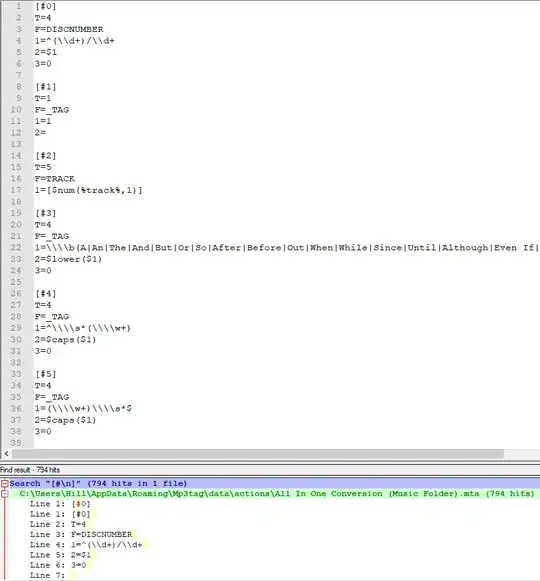
Example screenshots

robinCTS
  • 4,327
  • 4
  • 20
  • 29
ShaunHill
  • 13
  • 2

1 Answers1

0

You cannot 'add one' with a regular expression with notepad++.

However, this workaround may work for you:

  1. Clean the numbers first: Replace \[#\d+\] by [#]
  2. Replace new lines with something that cannot be repeated inside the file: For example, replace \r\n(?!\r\n) by <<<EOL>>>
  3. Fix first line (insert the number by hand)
  4. Use column editor for the rest of the columns. Place the cursor on the second line, after the '#' and press ALT+C
  5. Select "Number to insert": Initial number => 2, Increase by => 1.
  6. Select "Leading zeros"
  7. OK => This will add the numbers
  8. Replace \[#0+(\d+)\] by [#\1]
  9. Now restore the end of lines: replace <<<EOL>>> by \r\n

Note: I'm assuming windows line ending. You may need to use \r for Mac or \n for linux.

Julio
  • 186
  • 1
  • 4
  • Thank you for your reply. I will be testing this shortly but wondered if there was a way to convert this into a script within Notepad that can be run either with a prompt in the middle to do the manual work or as two scripts dealing firstly with steps 1-2 and 4-8? – ShaunHill Jul 21 '18 at 07:15
  • You can use the record macro functionality. However it seems you cannot record "Column editor" in the macro. So you'll probably want to record 1-3 and 5-8 and assign some shortcuts to them. Then: 1) call first macro, 2) manually call column editor (alt+c), 3) call second macro – Julio Jul 21 '18 at 09:13
  • Thanks for replying. I just started testing this and everything you say works fine until I get to the end. I notice all numbers which from 1 to 9 contain an extra space after them like '[#1 ]' once put back together at the end. How do I fix this as part of the macro please? – ShaunHill Jul 22 '18 at 05:17
  • I just added another step. Just use 'leading zeros' and then remove them. For the macro use steps 1-3, alt+c, and then 5-9 – Julio Jul 22 '18 at 09:20
  • It looked good until I checked the code. Now I have a problem with most lines: [#77] T=2 F=_DIRECTORY 1= (Digital Album) 2= 3=0|0 Line 3 it has added "|0" which did not exist before. How do I fix this as part of the macro please? – ShaunHill Jul 23 '18 at 05:33
  • That additional "|0" doesn't make much sense. I'm just wondering if it could be a typo when recording the macro. May I ask you to upload the file (or part of it) somewhere so I can test it on my machine? – Julio Jul 23 '18 at 06:26