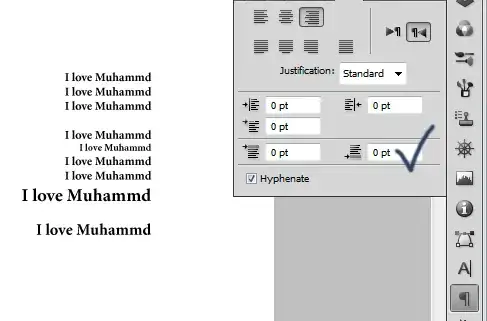
How do I increase the spacing between two lines (or leading) in a paragraph in Photoshop?
Asked
Active
Viewed 1.1e+01k times
22


-
What OS, what version of Photoshop? It would help if you would be more specific, like the tool you're using or post a screenshot – Ivo Flipse Feb 10 '10 at 09:51
-
Also, since your question was migrated here, you should create your account on this site, and associate it with your Stack Overflow account, to regain ownership over your question. – Gnoupi Feb 10 '10 at 09:55
2 Answers
26
From this link:
There are two types of formatting: Character (which can apply to one or more characters) and Paragraph (which always applies to one or more paragraphs). You can find these settings in the Options bar (when the Text tool is selected in the Tool palette) or in the Character and Paragraph palettes.
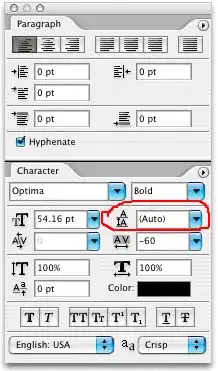
Leading (“ledding”) determines the amount of space between lines in a paragraph. (...) If you want the leading to be consistent throughout a paragraph, you should either select every character in the paragraph before you set the leading in the Character palette, or you should apply the leading while the text layer is selected in the Layers palette (but no text on the layer is selected).


-
Darn you beat me to it! I thought you weren't motivated to gain rep anymore?!? ;-) – Ivo Flipse Feb 10 '10 at 09:58
-
1
-
1You may have to toggle the Character & Paragraph panels in order for them to appear. They weren't displayed by default for me, even when having the Text tool selected. – Mark Feb 12 '13 at 15:58
-
-
@Gnoupi, There seems to be a limit of the line height to 72 pt. How do we get a larger line height? – Pacerier Sep 11 '14 at 09:13
-
@Pacerier - add one empty line and modulate from that? Other than that, I don't really have an idea. – Gnoupi Sep 12 '14 at 09:15