How can I create a keyboard shortcut so that when I press F12 in nautilus (or desktop), I get a terminal in the current directory?
Asked
Active
Viewed 6.0k times
86


-
1An added tip, don't use `sudo` on `dconf-editor`, run it without. Found that out the hard way, spent a few minutes rebooting and restarting before I figured it out. – Velocity Drift Mar 18 '14 at 09:38
-
Imo, this is the best answer to this question: https://askubuntu.com/a/696901/499347 (short, understandable and it just works) – dreua Apr 19 '17 at 13:44
-
Possible duplicate of [Keyboard shortcut for open terminal Nautilus >= 3.16](https://askubuntu.com/questions/680016/keyboard-shortcut-for-open-terminal-nautilus-3-16) – vanadium Oct 01 '18 at 08:47
8 Answers
52
Edit: not anymore applicable for Ubuntu 16.10 and newer
Finally figured it out.. first sudo apt-get install dconf-tools nautilus-open-terminal, then run dconf-editor and set the org/gnome/desktop/interface/can-change-accels boolean on. Then open nautilus using this command (to disable Unity global menu Temporarily):
nautilus -q
UBUNTU_MENUPROXY=0 nautilus
Now you can mouseover the action in the file menu, and change the accel by typing your key while the action is highlighted, finally restart your nautilus. If you don't see Open in terminal in the File menu and you've just installed nautilus-open-terminal, you might need to first run nautilus -q.
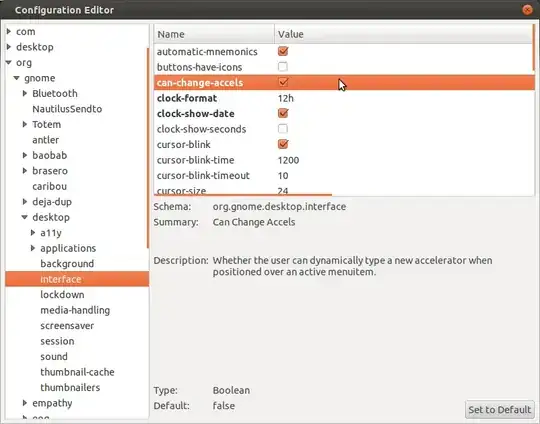

Ubuntu 14.04 and up
If you can't find the can-change-accels key in your dconf configuration you can try the following solution:
Stop nautilus by executing
nautilus -qOpen
~/.config/nautilus/accelsin a text editor of your choice, e.g. gedit:gedit ~/.config/nautilus/accelsTry to see if you can find the following line:
;(gtk_accel_path "<Actions>/DirViewActions/OpenInTerminal" "")If the line exists, add your keyboard shortcut in the second double-quoted segment and uncomment the line by removing
;:(gtk_accel_path "<Actions>/DirViewActions/OpenInTerminal" "F12")This would set the shortcut to F12. For a list of all possible key codes please consult this answer.
If the line doesn't exist just copy and paste the one found in this answer at the end of the file.
Save the file and restart Nautilus by clicking on the Nautilus icon in your launcher/dash.
Ubuntu 15.10 and 16.04
Here, the relevant command in ~/.config/nautilus/accels is TerminalNautilus:OpenFolderLocal. (NautilusOpenTerminal::open_terminal is still present in the file, but doesn't seem to have any effect.) So follow the instructions above, except change the line
; (gtk_accel_path "<Actions>/ExtensionsMenuGroup/TerminalNautilus:OpenFolderLocal" "")
to
(gtk_accel_path "<Actions>/ExtensionsMenuGroup/TerminalNautilus:OpenFolderLocal" "F12")
to make F12 your keyboard shortcut. Notice that ; is again removed.
Finally, log out for changes to take effect.

-
-
1As indicated in the answer, use `dconf-editor`. Using `gconf-editor` may not help. – Kadir Sep 01 '13 at 05:06
-
-
@DpN For 14.04 try editing in the file `~/.config/nautilus/accels` and adding a line like `(gtk_accel_path "
/DirViewActions/OpenInTerminal" "F12")`, then restart nautilus. – wim Apr 29 '14 at 09:04 -
Not working,I inserted after 'Connect to server' line in that accels file starting with ; – Deepen Apr 29 '14 at 10:46
-
-
Just adding that same works in Nemo, but the file to be edited is `~/.gnome2/accels/nemo`. – pileofrocks Oct 14 '15 at 04:19
-
I have a 14.04 and the approach for it didn't work; however, I used that for 15.04 and above and it works like a charm. – tigerjack Jan 02 '17 at 14:13
-
1
-
1
-
2According to the other answer this answer has not been functioning for quite a few versions of Ubuntu now. This should be edited into the answer more clearly! Could someone do this. Alternatively please upvote comments that indicate that this no longer works for 16.10 and newer. – Kvothe Nov 17 '20 at 15:14
-
Cannot test this, but maybe `gsettings set org.gnome.desktop.interface can-change-accels true` should be done for this to work? – Alexey Apr 27 '22 at 14:49
40
Since version 3.15.4 Nautilus doesn't load the accel file anymore (Source).
Fortunatelly there's a better aproach in order to get what you want. Long explanation/useful resources can be found here and also here. In short:
Create a script called
Terminal(yes, without a extension) inside the folder~/.local/share/nautilus/scriptswith the following content:#!/bin/sh gnome-terminalMake it executable, then close any Nautilus instance:
$ chmod +x Terminal
$ nautilus -q
Create (or edit) the
~/.config/nautilus/scripts-accelsfile adding these lines:F12 Terminal ; Commented lines must have a space after the semicolon ; Examples of other key combinations: ; <Control>F12 Terminal ; <Alt>F12 Terminal ; <Shift>F12 TerminalTest it! Open Nautilus, right click, and choose Scripts > Terminal. Or, use the keyboard shortcut that you've just configured :)
Note: Tested on Ubuntu 18.04.
Update Ubuntu 20.10: Unfortunately, this does not anymore work in Nautilus 3.38 (Ubuntu 20.10).
Update Ubuntu 21.10: Fortunatelly, the scripts-accels file works again in Files 40 (Ubuntu 21.10)

Matthias
- 142
- 7

amartin1911
- 500
- 4
- 8
-
2
-
2
-
1
-
-
If you reopen nautilus before editing `scripts-accels`, you'll have to run `nautilus -q` again. Should probably move that instruction down? – Matthias Sep 24 '19 at 19:54
-
-
-
5
-
Tried on mine and wasn't working, but quickly figured out it's because I had removed gnome-terminal and replaced it with terminator - Works once I updated the script – ZombieTfk Jan 01 '21 at 18:34
-
The update message that states this has stopped working with Ubuntu 20.10 is probably incorrect, I had no issues using this with 20.10, and just successfully set it for 21.04. – maqp Apr 23 '21 at 02:34
-
Nice try. Nevertheless it's not exactly what I'm looking for, because it works only in the open folder and not in the foder where the cursor is positioned as "Right Click + Open in Terminal" does. – Lv2eof Sep 09 '22 at 12:37
-
13
Using the dconf-editor approach doesn't seem to work in Trusty Gnome. But the following does:
In your home directory press Ctrl+h, open the .config folder, the nautilus folder, and the accels file;
ie, open ~/.config/nautilus/accels and change the line:
; (gtk_accel_path "<Actions>/ExtensionsMenuGroup/NautilusOpenTerminal::open_terminal" "")
to
(gtk_accel_path "<Actions>/ExtensionsMenuGroup/NautilusOpenTerminal::open_terminal" "F12")
Note that the comment delimiter has been removed.
Save the file, log out and back in.

Glutanimate
- 21,183
- 13
- 100
- 153

John F. Healy
- 131
- 1
- 2
-
3Yep, this is the approach I have already suggested in the comment on accepted answer. – wim May 07 '14 at 14:09
-
-
2There is no need to log out and in again. A simple `nautilus -q` does the job. – adn Apr 20 '15 at 14:31
-
I tested this on `3.28.1` and it didn't work. Can someone please test with the same version? – orschiro Jul 18 '18 at 11:10
-
-
Seems not available anymore, see [this](https://bugs.launchpad.net/ubuntu/+source/nautilus/+bug/1646985) bug report. – Alexey Apr 22 '22 at 09:03
10
Not exactly the answer for this question
If all you want is access the terminal in the current directory, you can do that with
Ctrl + F10 then e
Ctrl + F10: Same as right click at the current directory
e: Selects "Open in Terminal"
It can change if your OS is in another language.
For example, in portuguese from brasil would be:
Ctrl + F10 then t
Just look at the underlined letter to know the key.
If you are using notebook you may have to use the super key too.
Ctrl + Super + F10 then e
You mentioned opening from Desktop, the closest i could think is opening the terminal on home directory.
Ctrl + Alt + t

Thiago Lages de Alencar
- 381
- 3
- 10
-
2Valid answer, provided you indicate this is a (quite valid) workaround rather than a possibility to add a shortcut key. – vanadium Feb 13 '21 at 12:15
-
1
-
6
You could also use a nautilus script instead of a dedicated extension:
#!/usr/bin/perl -w
#
# Open terminal here
#
# Nautilus script that opens a gnome-terminal at the current location, if it's
# a valid one. This could be done in shell script, but I love Perl!.
#
# 20020930 -- Javier Donaire <[email protected]>
# http://www.fraguel.org/~jyuyu/
# Licensed under the GPL v2+
#
# Modified by: Dexter Ang [[email protected]]
# 2003-12-08: Modified for Gnome 2.4
#       - Added checking if executed on Desktop "x-nautilus-desktop:///"
#         so that it opens in /home/{user}/Desktop

use strict;

$_ = $ENV{'NAUTILUS_SCRIPT_CURRENT_URI'};
if ($_ and m#^file:///#) {
  s/%([0-9A-Fa-f]{2})/chr(hex($1))/eg;
  s#^file://##;
  exec "gnome-terminal --working-directory='$_'";
}

# Added 2003-12-08 Dexter Ang
if ($_ == "x-nautilus-desktop:///") {
  $_ = $ENV{'HOME'};
  $_ = $_.'/Desktop';
  exec "gnome-terminal --working-directory='$_'";
}
Instructions on installing the script and assigning a keyboard shortcut.

JJD
- 832
- 4
- 19
- 46
Glutanimate
- 21,183
- 13
- 100
- 153
-
1And how exactly having a Nautilus script instead of a dedicated extension helps assigning it a keyboard shortcut? – MestreLion May 30 '14 at 08:58
-
1@MestreLion Thank your for your comment. This answer was merged from another Q&A (check the [edit log](http://askubuntu.com/posts/68078/revisions) for more details). That's why it didn't have a section on assigning a shortcut. – Glutanimate May 30 '14 at 13:06
-
Ohh, I see. Sorry then! A bit unfortunate that such distinct (albeit related) questions were *merged*. Your answer was great for the other question, but incomplete for this one. – MestreLion Jun 01 '14 at 12:50
3
To expand on John F. Healy's post:
nautilus -q
sudo apt-get install nautilus-open-terminal
sed -i 's/; (gtk_accel_path "<Actions>\/ExtensionsMenuGroup\/NautilusOpenTerminal::open_terminal" "")/(gtk_accel_path "<Actions>\/ExtensionsMenuGroup\/NautilusOpenTerminal::open_terminal" "F12")/g' ~/.config/nautilus/accels
This should work on Ubuntu 14.10 Utopic Unicorn. The last line edits the ~/.config/nautilus/accels file. To make sure the edit was successful, try the following command:
grep NautilusOpenTerminal::open_terminal ~/.config/nautilus/accels

Giulio Genovese
- 239
- 1
- 3
2
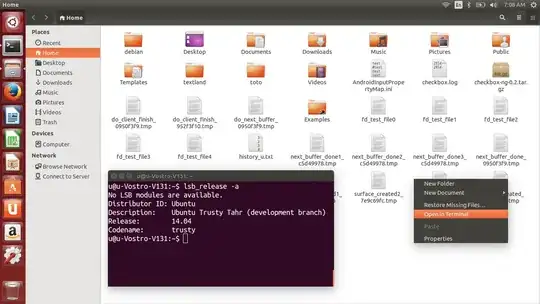
After installing nautilus-open-terminal, ensure that you have killed all nautilus processes (there's always one non visible nautilus process running, so use pgrep nautilus to find them and use then use the kill command).
Then if you launch nautilus, you should see the Open in Terminal if you right-click in the list of files, like I did in the screenshot below (where I was running 14.04):

Sylvain Pineau
- 61,564
- 18
- 149
- 183
-
5The problem is I use list view where there is no white space left if the folder contains many files. Now I use tree in list view in the display setting as a temporary solution. – xgdgsc Apr 10 '14 at 11:19
1
Besides configuring by hand, there is also a GUI application to manage these shortcuts: https://github.com/echo-devim/nautilusaccelsmanager (tested)
It's pretty useful since the configuration fails because of tiny stuff like capitalization. With this useful tool, just press the desired hotkeys and configuration with the right style is produced.
For a detailed insight of how it works, see https://askubuntu.com/a/696901/1147792.

user26742873
- 242
- 1
- 10