I was playing with the color manager for my display and things went too far. I would like to undo applied profiles, or set it to default.
Asked
Active
Viewed 3,448 times
1


-
did you click on "Add profile"? mine only had one line at first as well. – Mateo Sep 09 '14 at 20:34
-
yes but I've got a browsers window popping in order to find a profile in the computer. – Throne Sep 09 '14 at 20:41
-
so which program did you use to change the settings? – Mateo Sep 09 '14 at 20:52
-
I used the same program. I did the way you described and profiles disappeared from the list one by one when I was adding them. When now I try to do the same way it appears as I describe above – Throne Sep 09 '14 at 20:57
-
Hit the little arrow that points to the left in front of the one entry, this should turn downward to reveal a list. – Mateo Sep 09 '14 at 23:32
-
Good morning. I did as you said and it works. I feel stupid now because it was so simple. Thank you very much !!! – Throne Sep 10 '14 at 07:38
1 Answers
0
Open the System Settings:
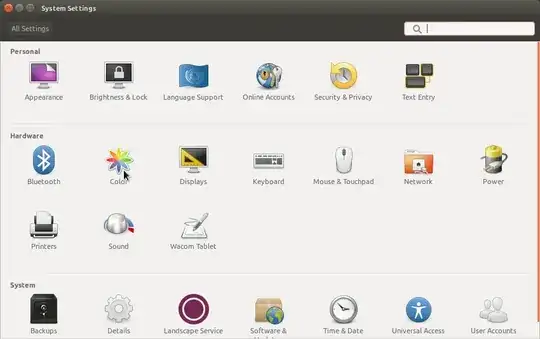
Click on Color under the Hardware section.
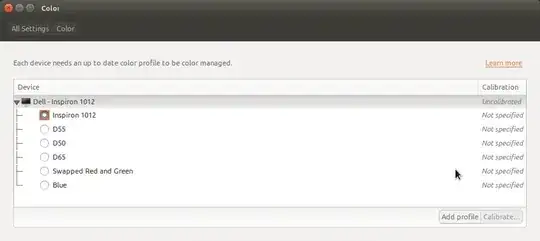
Add a new profile, or select a different profile if your messed up profile is selected and there is a default profile for your device. If not you can add one of a number of Test profiles that should give you a good starting point. Example for my device the D65 test profile was nearly identical to the default. (side note: you can only "Calibrate" with a external color sensor device.)

-
1`sensor device` - [Example devices](http://www.amazon.com/s/ref=nb_sb_noss_1?url=search-alias%3Delectronics&field-keywords=Pantone%20huey%20Pro) - Note though that you MUST check which ones are supported by ArgyllCMS, the software behind "Color" above. – Hannu Sep 09 '14 at 20:02