3

After two years of endless campaigning by me and my schoolmate and comrade, Ask Ubuntu user Shubham Rao, we have finally succeeded in convincing our teachers to switch from Windows XP to Linux. A massive virus attack has infested all of our computer lab PCs and the mid-session hassle of formatting and losing data made them balk at the idea of reformatting the PCs halfway through the session-and we suggested they try Kubuntu to be comfortable while enjoying the safety and open nature of Linux.

They were thoroughly impressed by the visuals of the KDE Plasma Desktop, and how the Microsoft programs needed by the syllabi (Office 2007, Visual Studio 6 etc.) were running natively in Wine. So this is what we agreed to-we will occupy one PC, put Kubuntu on it, customize it continuously to make it Windows-friendly and then clone the entire lab's HDDs.

But we are running into some hurdles which are affecting the comfort of the students-we asked few of my classmates to give Kubuntu a shot, and though they found it much better than Windows, they were confused by some minor things. They haven't used Linux-or any computer operating system save Windows, they lack a bit of intuition, and they found it difficult to hunt for their Windows counterpart programs on Kubuntu-Kate/Notepad, Konsole/Command Prompt, Paint/LibreOffice Draw-specially using the search bar.

We wish to eliminate these minor things completely before the entire lab makes the switch to Kubuntu:

  • Disk labels, disk labels, disk labels: We want a drive to be seen as Local Disk C:, Local Disk D:, and not 78.9 GiB Volume, as Dolphin shows it. However, it seems there is no way how to change the labels.

  • Adding custom tags to applications listed in Kickoff: Say, if someone searches for notepad in the search bar, Kate should come up. Or Konsole when we type "command prompt". They don't know the names of the KDE/Linux Counterparts at all.

  • Custom Sections in Kickoff: Much needed, since guys don't have the patience to look for all of the Microsoft Office and LibreOffice programs combined into one "Office" section by the OS automatically.

  • Change program labels? Why not? Of course, this is heartburn, but they won't give two hoots to whether I call a program Media Player or Amarok.

We would like your advice please, on these and other issues that might come to your mind when thinking how to make Windows-seasoned folks comfy on Kubuntu-and make them stay on to the magic of open source-and Linux.

PS: This does sound pretty stupid but please don't ask us to try Xfce or LXDE. KDE Plasma is way too awesome to be abandoned. ;)

Mayukh Nair
  • 476
  • 2
  • 14

3 Answers3

5

Disk labels

Ubuntu community docs: https://help.ubuntu.com/community/RenameUSBDrive

This guide is primarily for external drives such as USB hard drives, USB flash drives, and flash memory cards. You can label internal disks...

You could edit internal disk labels same way as the external disks.

enter image description here

Custom Kickoff menu - names, tags, subsections

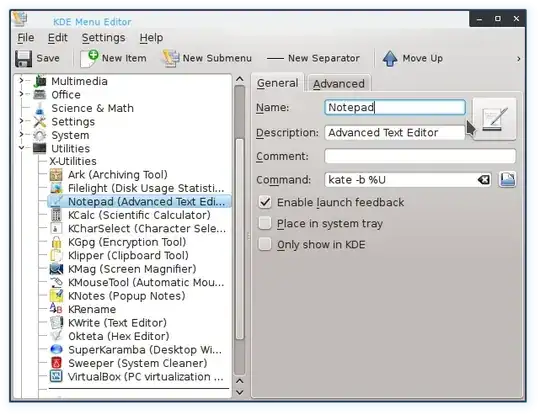
The KDE has a GUI: KDE Menu Editor

On line: http://docs.kde.org/stable/en/kde-workspace/kmenuedit/

or

Start the KMenuEdit:

KMenuEdit can be started either by right mouse button clicking the application launcher button on the panel and choosing Edit Applications..., or by typing kmenuedit in the KRunner line.

and press the F1 / Help-> KDE Help Center Handbook

enter image description here

KMenuEdit allows editing the menu of KDE application launchers: Kickoff, classic K menu or Lancelot Launcher.

KMenuEdit allows you to:

  • View and edit the menu used by the current application launcher (Kickoff, classic menu or Lancelot Launcher)
  • Cut, Copy and Paste submenus and items
  • Create and delete submenus and items
  • Change the order of submenus and items
  • Hide items and add new submenus and items

The setting can be moved to the another system:

Transfer application launcher settings

There is no way to transfer menu settings using the GUI, you have to do that manually and copy the following files to the target user:

KMenuEdit stores the menu hierarchy in $HOME/.config/menus/applications-kmenuedit.menu and $HOME/.local/share/desktop-directories contains desktop files for submenus you created. In $HOME/.local/share/applications/ you find the desktop files for the custom items you created.

The shortcuts for each application are stored in ~/.kde/share/config/kglobalshortcutsrc, but export/import does not work because the UUIDs of the shortcuts do not match up between systems, even though the .desktop files are the same. You have to assign all shortcuts manually again.

enter image description here

user26687
  • 14,874
  • 1
  • 38
  • 43
1

The key to migrate to Kubuntu from Windows is via a test system, or setting a help desk for students and teachers.

  • Disks ; Windows everyone knows. However, people also know Linux; http://Youtube.com is a linux "Disk" (resource) ; http is the protocol (method) of accessing this resource (disk) and can be located anywhere, and across multiple servers (mirrors).
  • Kubuntu apps ; are KDE apps! However, you are not restricted to running just KDE apps. You can hybridize the system to run any linux app. So introduce Kate as one notebook option, then Google "notebooks for linux" and see the variety. Add the term wiki to your search; "wiki notebooks for linux", and you'll find wikipedia style notebooks.
  • App access ; Just as in Windows, you can place frequently access apps on the on the bottom panel (task bar) or in your favorites;

My system bottom panel Note the apps on the bottom panel.

My system - Favorites

This functionality is very similar to that in Windows. No need to hunt or search for favorite (or frequently used) apps.

Replacing Windows apps ; Here once again, I've found no issue;

  • LibreOffice (OpenOffice) replaces Office
  • GIMP replaces Photoshop & Pant
  • Firefox replaces Internet Explorer

The pics were uploaded directly to Google Picasa Web from Gwenview.

If you need more help don't hesitate to ask.

Syborgia Alphas
  • 302
  • 1
  • 10
0

This needs a second answer. I tried added a comment, but it wasn't sufficient.

Important notes:

  1. Don't forget to test bench. Set up a test system first. Kubuntu, like all OS's, has bugs.
  2. The test bench (system) is where you make all your mistakes and resolve issues, before using any software in a production environment.
  3. Take good notes! You need them to pass on to future support people. Linux is community developed and supported.
  4. Many bugs have workarounds! But some don't.
  5. Learn bug tracking and resolution. This helps a lot when dealing with issues.
Syborgia Alphas
  • 302
  • 1
  • 10