I have my settings to hibernate after 20 minutes and after 5 minutes it kicks into hibernate even when I'm watching a movie. I'm a complete newbie with Linux. I have Ubuntu 14.04 and my computer is a HP 655 laptop also I have xscreensavor.
Asked
Active
Viewed 3,124 times
2

-
Are you using the Unity desktop or Xubuntu, Kubuntu, Gnome Shell, or Lubuntu? – mchid Aug 08 '14 at 02:20
-
unity i think sorry im a noob – user269387 Aug 08 '14 at 23:55
3 Answers
3
You can use Caffeine.
"Caffeine is designed to help your computer stay awake. It’s chiefly used to prevent a screensaver or lock-screen from kicking in when you don’t want it to (e.g., watching videos or leaving music playing in the background while you snooze)."
A link to more info, as well as a download for 14.04, can be found here.
Caffeine is available as a PPA. To install it, open a terminal by pressing CtrlAltT and then enter the following commands:
sudo add-apt-repository ppa:caffeine-developers/ppa
sudo apt update
sudo apt install caffeine
Type your password when prompted for a password by sudo.


amanthethy
- 1,231
- 7
- 12
1
Check your settings again go to:
system settings

brightness & lock
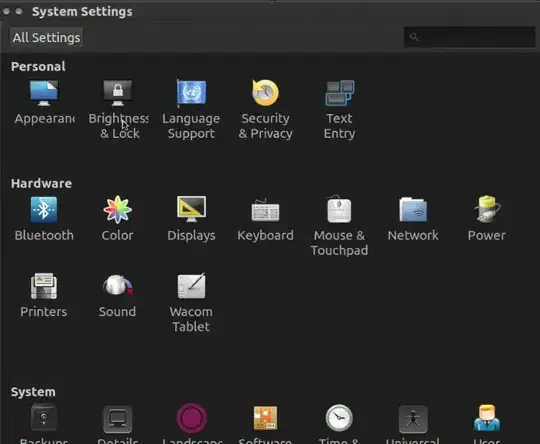
make sure dim screen brightness to save power is not selected
make sure turn screen off when inactive for: is set to never
if the problem persists, consider filing a bug report
make sure lock is off
and make sure require my password when waking from suspend is not selected
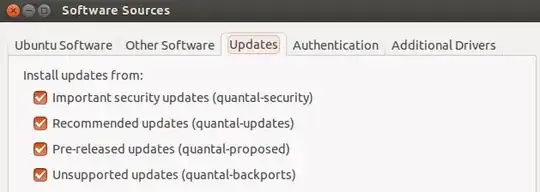

mchid
- 42,315
- 7
- 94
- 147
0
If you would like to keep the pc awake based on network traffic, or cpu load or user activity then you can try Keep.Awake instead of Caffeine https://launchpad.net/keep.awake
I haven't developed a GUI for it yet so you will need to use the command prompt.
I still haven't gotten around to creating a snap or deb for it. However temporarily you can download the program from Launchpad here
The current version is stable and works on all Ubuntu versions from 14.04 up to 16.04. That said I am continually improving it and will be adding new features.
It works like a proper command. Type --help to see a full listing of what can be done. The examples underneath are only a few:
./keepawake.py --help
To run interactively:
./keepawake.py
To run as a background service:
nohup ./keepawake.py -r > /dev/null 2>&1 &
To run as background service and set 15 min (900 sec) as the user activity idle time before it determines that the user is idle:
nohup ./keepawake.py -u 900 -r > /dev/null 2>&1 &
To run as background service and set minimum CPU load as 13%:
nohup ./keepawake.py -c 13 -r > /dev/null 2>&1 &
To run as background service and set minimum network traffic as 5KB (5120 bytes):
nohup ./keepawake.py -s 5120 -r > /dev/null 2>&1 &
To run all three settings above (network, CPU, User idle) in the one go:
nohup ./keepawake.py -s 5120 -c 13 -u 900 -r > /dev/null 2>&1 &

DanglingPointer
- 1,023
- 11
- 22
-
2Hi @DanglingPointer. You've posted the same answer four times. It'd be much more helpful if you mark the questions as duplicates in the future. That way, you only have to post your answer once and it makes the solution easier to find for everyone. Also, please clear up your affiliation with the project you've linked to (if you are indeed the author). Users who promote their own stuff in a lot of places run the risk of getting flagged for spam! – Stefano Palazzo Jun 17 '16 at 09:05
-
Regarding the duplicates, sure no problem. As for being the author, well it is quite obvious if you read it that I wrote it. If someone is asking for a solution to a problem for which I have a free and open source solution that addresses it; what's the problem there? It's just a command. The whole purpose of this site is to find answers and solutions. There's nothing being sold here. – DanglingPointer Jun 18 '16 at 09:20