43

Using VLC 1.1.12 on Ubuntu 11.10, I'd like to show subtitles under the video so that they don't disturb me.

I tried to change it: Interface > Preferences > Subtitles & OSD > Force subtitle position > -110 px (I also tried with other values)

but nothing changed (well, if I set +100px the subtitles are shown in a higher position).

What am I doing wrong?

gadelat
  • 107
  • 3
Melanix
  • 461
  • 2
  • 6
  • 6
  • are you asking to have subtitles under the image in all cases no matter the aspect ratio, or just **as low as possible**? - that is: under the image in the black empty area when there is such an area available given the aspect ratio, and **not** under the image when there is not such an empty area? or create that black empty area by shrinking the image in some cases - as the main answer provides? -- take a look at [this question](http://askubuntu.com/q/526286/47206). If you need, edit this question too. –  Nov 05 '14 at 08:59
  • 1
    @cipricus The OP is unregistered already long time ago, so hardly she will answer... – informatik01 Nov 05 '14 at 10:45
  • Full answer (I'm blocked from posting a real one): Add the line `sub-margin=-400` to your VLC config file (it's plain text, located [here](https://wiki.videolan.org/Preferences/)) to move the subs e.g. 400 pixels downwards. Might require restarting the program to see changes. – iono Apr 26 '22 at 13:39
  • The subs are still limited to within the video file's area, unfortunately, so also add `croppadd-paddbottom=100` to add 100 pixels of transparent padding to the bottom of the video to fit the subtitles. You can just set `sub-margin` to -9999 to force them as low as the bottom of the padding. – iono Apr 26 '22 at 14:34
  • Also add `video-filter=croppadd` to actually enable the filter. – iono Apr 27 '22 at 01:36

2 Answers2

64

You probably want to display subtitles below the picture on the black surface?

By default you can only position subtitles inside the picture. That is why when you were experimenting you could not place the subtitles below the picture.

But still there is a way to do what you want using Cropadd video filter.


How to show subtitles under the video in VLC

1) Go to Tools > Preferences and below on the left, in the "Show Settings" section, choose "All ":
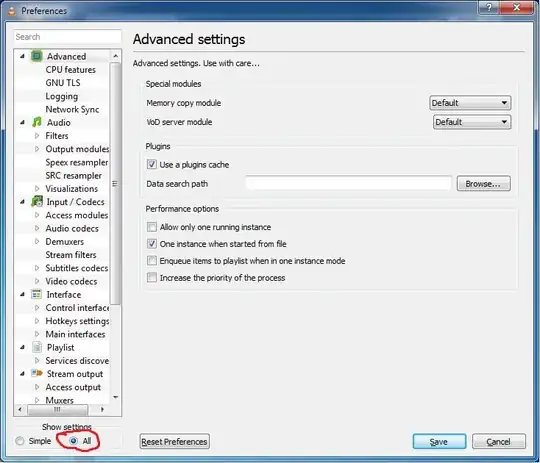
enter image description here

2) In the left menu choose Video > Filters > Cropadd :

enter image description here

3) In the "Padd " section enter some positive number for the "Pixels to padd to buttom " option. For this example I used 75px, you are free to experiment.

NOTE
As was noticed in the comments, with the current settings (75px) there is a tiny green line below the video. The solution for getting rid of that tiny green line is simple: enter some even number (for example 76) and there will be no green line below the video. Thanks for this tip to some anonymous user and the community moderator Grace Note who passed this tip in the comments below.
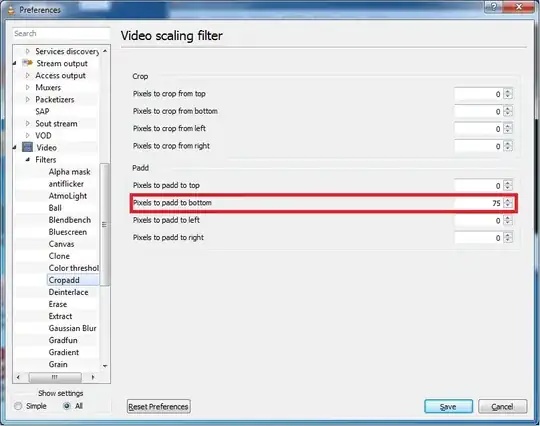
enter image description here

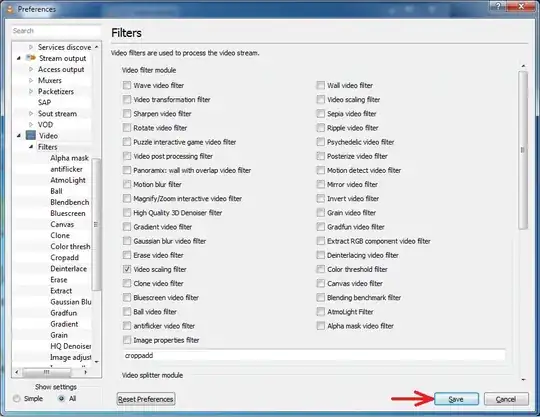
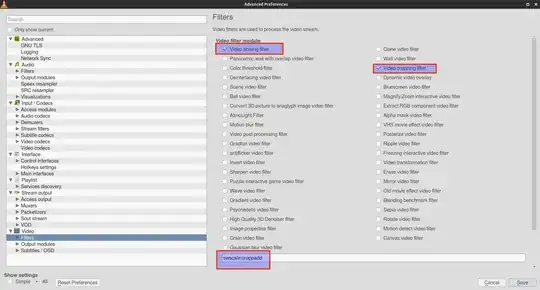
4) Then, again in the left menu, go to Video > Filters and in the "Video filter module " section check the "Video scaling filter " option. The result must be that in the text field below the current section there will be written "croppadd ".

NB!
There are two "Video scaling filter " options to choose from: one in the left and one in the right column. On of them is for another filter - "Swscale". Choose the one, that will give you the word "croppadd" written in the text field below (see the picture):
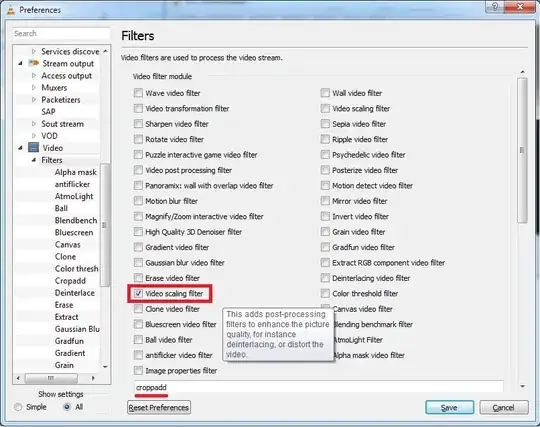
enter image description here

5) Click "Save " button:

enter image description here

6) Now, for the changes to take effect, you must restart VLC (close it and run again)

That's it.
This way you can customize the position of subtitles so they will be shown outside the picture .


Showcase

DISCLAIMER:
The following screenshots are taken using videos from the Stanford University's learning course
"Algorithms: Design and Analysis, Part 1".

NOTE: this course has already transformed into "Algorithms Specialization " as of year 2019.

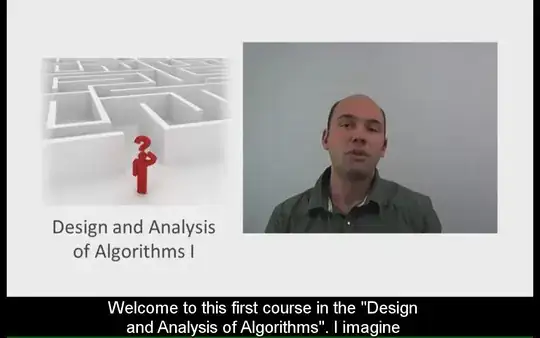
BEFORE: enter image description here
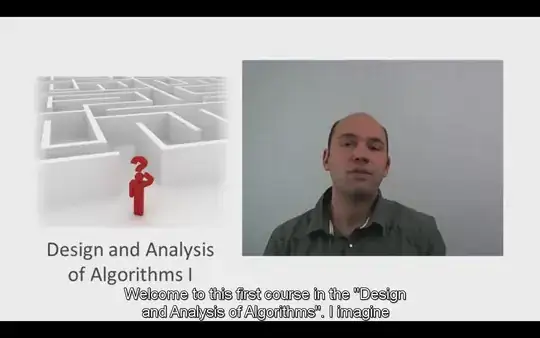
AFTER: enter image description here


Useful tips

  • It is very helpful to assign the related Hotkeys to manipulate subtitles position in real time.
    Go to Tools > Preferences > Hotkeys and assign some hotkey combination for the
    "Subtitle position up " and "Subtitle position down". To do this double-click on the related line and choose some key combination. Don't forget to save and restart VLC player for changes to take effect.
    For instance I have chosen Ctrl+Alt+UP and Ctrl+Alt+DOWN respectively. So now I can dynamically adjust the position of subtitles by moving them up or down while watching a video.
  • There are more customization options in the "Subtitles/OSD " section in Preferences, like changing Font, Font size etc, so you can fine tune the subtitles settings according to your needs.

UPDATE (May 2015)

As user akcasoy noted in his comment in the latest (as of May 2015) version 2.2.1 of VLC, the name of the required filter was changed from "Video scaling filter" to "Video cropping filter" (which is actually much more intuitive and relevant).

So here a screenshot for the step 4 if you use the currently latest VLC version 2.2.1:
enter image description here

informatik01
  • 747
  • 1
  • 10
  • 21
  • I was finally able to get it to work using these directions. One thing that I would like to mention is that there are 2 "Video scaling filter" Tic boxes. One on the right column that does not work and one near the bottom of left column. I spent at least an hour trying many different setting without any results. I was getting quite frustrated. Then I found "Video scaling filter" choice in the left column and everything works. I did change the subtitle font to larger so I can read it from across the room. – Rob Moore Aug 20 '13 at 10:17
  • 4
    @RobMoore The reason behind your problem was that after you selected "Video scaling filter", in the text field below there was written "**swscale**", i.e. you were selecting the **wrong filter** - "Swscale". But, as I wrote in my answer, in the text field below it must be written "**croppadd**". But thanks for mentioning your issue, I'll update my answer to point out this moment. – informatik01 Aug 20 '13 at 13:39
  • @MichalBernhard You're welcome )) – informatik01 Feb 21 '14 at 18:36
  • Very useful, is there a way to get rid of green line at the bottom? – Cem Kalyoncu Jul 12 '14 at 07:37
  • @CemKalyoncu Wow, never noticed the tiny green line before you told me. Sorry, I don't know how to get rid of it. Just ignore it, it's really tiny )) – informatik01 Jul 12 '14 at 12:33
  • 3
    @CemKalyoncu A user emailed us regarding your inquiry and asked us to pass on their advice. They suggested that the value entered for "Pixels to add" needs to be an even number to avoid a green line. At the very least, this worked for the user. – Grace Note Jul 24 '14 at 12:59
  • @GraceNote I confirm - it works. Although not that critical, but for the sake of completeness, I would add this remark/advice to the answer, if you, as a moderator, disable turning this answer to a community wiki. – informatik01 Jul 26 '14 at 12:09
  • 1
    @informatik Weremoved all automated conversions for community wiki a few months back. Edit at your leisure~ – Grace Note Jul 26 '14 at 19:38
  • @GraceNote Wow, cool! Did you also removed it on the Stack Overflow? Or it is remived only here, at Ask Ubuntu? – informatik01 Jul 26 '14 at 21:16
  • @GraceNote OK, I found your blog post [Putting the Community back in Wiki](http://blog.stackoverflow.com/2014/04/putting-the-community-back-in-wiki/) and it seems like it goes for all Stack Exchange network sites (and that means Stack Overflow is included). How did I miss it? Great news for those of us who like to polish, perfect and update their answers... – informatik01 Jul 26 '14 at 21:53
  • the video is pushed above the subtitles, not the subtitles under the video. when there is enough space above (given a specific aspect ratio), the image is moved upwards into the space above. at aspect ratios with no space under/above, the image is still pushed upward and its dimensions are reduced (so that it does not go beyond the limit of the visible display). this is very undesirable and therefore the solution (as well as the question) is limited only to a certain aspect ratio. re-asked [here](http://askubuntu.com/q/237174/47206) and [here](http://askubuntu.com/q/526286/47206) –  Nov 05 '14 at 07:45
  • 2
    I am using the VLC Version 2.2.1 (current latest) on mac. And the option is not called "Video scaling filter " anymore, but "Video cropping filter". –  May 09 '15 at 14:45
  • @akcasoy Thank you for pointing out the latest changes, I have updated my answer. – informatik01 May 09 '15 at 15:21
  • If anyone else reads only this answer, and not also the question (as I did), make sure you also set Prefs / Show All / Video / Subtitles & OSD / Force subtitle position to a negative number, to ensure the lowered position of subtitles sticks after quit/relaunch. – 2540625 Oct 10 '18 at 17:06
  • I am facing another issue. This works fine. But this along with the force aspect ratio is not working...I have set aspect ratio to 4:3, but after these steps, though cropping is working fine, but the video starts with the default aspect ratio, in spite of having force aspect ratio option selected. So as there any way of dealing with this? – Abhishek Ghosh Mar 26 '22 at 14:22
  • @AbhishekGhosh Not aware about that, sorry. – informatik01 Mar 26 '22 at 17:24
  • @informatik01 ok no issues. – Abhishek Ghosh Mar 26 '22 at 18:40
7

This is a complementary answer to the main one.

Depending on the aspect ratio, a video image may have or may not have a black space under the video.

Considering the linked answer:

  1. when the picture has a black space below it, it also has a black space above it, and so the picture is not squeezed, but moved upwards, while the above space is diminished (notice that in the images below). In this way, the video is the one moved and pushed above the subtitles, not just the subtitles under the video.

Before:

enter image description here

After:

enter image description here

I am using VLC 2.2 and to get this effect I made some settings that are somehow different from the ones in the other answer:

enter image description here

  1. when the aspect ratio is such that it does not leave space under and below the image you cannot add subtitles outside the image without shrinking it somehow. But in such a case it doesn't make much sense to display the subtitles under the picture. It is enough to have them as low as possible.

The problem with the settings proposed in the other answer is that VLC keeps them even when that is not the most preferable option, and the video image is 'shrunk'.

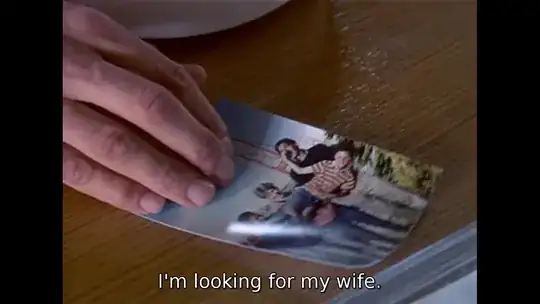
In such a case, when the initial image is this:

enter image description here

Those settings will lead to this:

enter image description here


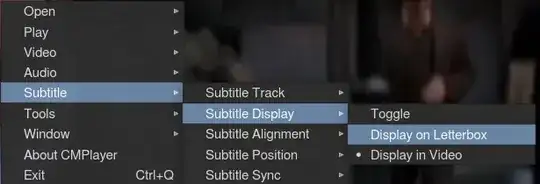
When I need subtitles under picture I find it much easier just to open the video in a different player like bomi player, which can easily activate and deactivate the needed setting.

Just right-click on the image:

enter image description here

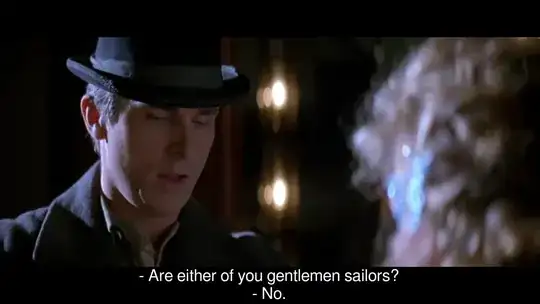
And you get this:

enter image description here

When playing a video at an aspect ratio that fills the entire screen, bomi displays the subs on the picture with or without the 'letterbox' option.


As an alternative to bomi player I lately am using mpv which displays by default subtitles under video image when needed.