8

While editing text documents I need to put time stamps frequently. I thought of automating it in 2 different ways. None of these seem to be working.

  1. Using nautilus-actions

I set up a new right-context action which runs the command date|xclip
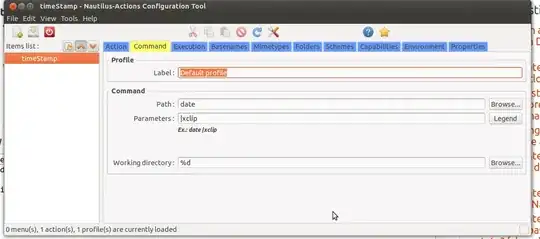
enter image description here

This right-context doesn't show up when I right click in other applications (such as terminal, or browser). Moreover when it appears, and I click on it, it doesn't do anything.

  1. Using keyboard shortcut

I setup a new keyboard shortcut which is supposed to execute date command but doesn't.
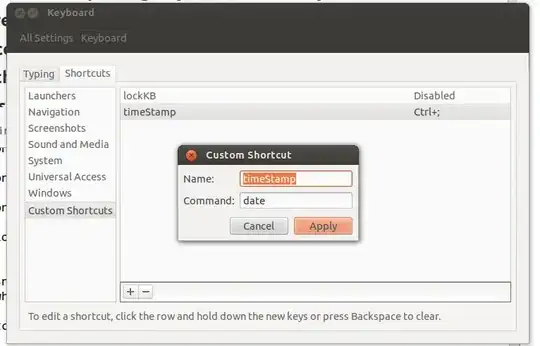
enter image description here

Any pointers?

Thanks.

user13107
  • 778
  • 9
  • 24

3 Answers3

11

GNOME keyboard shortcuts should work.

Here's why what you tried didn't work: Your keyboard shortcut runs the date command, but does nothing with the output (which just gets discarded). You should pipe it to xclip, as date | xclip to copy it to the X selection (not clipboard). Then you can paste it into your document by middle-clicking. If you want to be able to use Ctrl-V, instead use date | xclip -selection c to copy it to the actual clipboard.

Another alternative is to use xdotool to type the date directly into your document. Assign to your shortcut

xdotool type "$(date)"

Then, when you press the shortcut key, it will calculate the current date and type the characters it into your document.

For ISO 8601 format, use xdotool type "$(date --rfc-3339=s)".


If it doesn't work: Because these are shell commands (as opposed to executables), you might have to pass the command to bash when specifying them in your shortcut. Your command would then be:

bash -c 'xdotool type "$(date --rfc-3339=s)"'
Mechanical snail
  • 5,325
  • 3
  • 28
  • 40
  • Thanks. Tried it. But it's not working. I assigned the shortcut to CTRL+; and I click this particular combination on desktop and then I click CTRL+V (say in gmail) but it doesn't paste. Do I have to restart laptop? – user13107 Jan 07 '13 at 07:02
  • @user13107: It turns out that by default, `xclip` copies the text not to the clipboard, but to the X selection. To paste it, use middle-click rather than Ctrl-V. – Mechanical snail Jan 07 '13 at 07:11
  • Using `bash -c` did the trick but there is some kind of delay in typing. When I click the shortcut, complete timestamp is not typed using xdotool. Some initial numbers are eaten up e.g. `1-07 15:14:35+08:00`or `013-01-07 15:14:35+08:00` – user13107 Jan 07 '13 at 07:16
  • Yes, the {xclip, middle-click} solution works! But it still needs me to click twice. One for keyword shortcut, another for middle-click. I don't know why xdotool seems to give glitches. Thanks, anyways! – user13107 Jan 07 '13 at 07:24
  • 1
    @user13107 I had the same issue. After some trial and error I ended up with the command `bash -c 'date | xclip -selection clipboard && xdotool key 'ctrl+v''` that works perfectly. – Immanuel Weihnachten May 22 '13 at 02:26
  • 1
    @user13107 - this is because you don't use `xdotool --clearmodifiers` - some keys are typed with the Ctrl (e.g. - space, it gets swallowed). Some characters won't be typed (e.g. `:` - which is shifted), but I'm using a following command: `xdotool type --clearmodifiers $(date "+%Y-%m-%d,%H-%I")` which works for me. – Tomasz Gandor Aug 09 '15 at 20:26
  • putting this on keyboard shortcut only generates $(date "+%Y-%m-%d,%H-%I") and not the actual date value – Jacobski Dec 24 '21 at 01:15
6

I've been successfully using this as a custom keyboard shortcut assigned to Ctrl+Shift+D:

bash -c 'sleep 0.3 && xdotool type "$(date -u +%Y-%m-%d_%H:%M:%SZ)"'

I found adding a slight delay solved the issues with missing initial characters, and doesn't pollute my clipboard.

Note that I'm using a slightly customized version of RFC 3339/ISO 8601 format: I often use this in contexts where I want to avoid the space in date's RFC 3339 output, but I find the T that separates the date from the time in ISO 8601 timestamps rather unintuitive and difficult to read, so I find an underscore works well.

Gabriel Grant
  • 161
  • 1
  • 5
3
bash -c 'xdotool keyup super && xdotool type "$(date +%Y.%m.%d)"'

I use Super+Q as my shortcut, and I need to clear the super modifier before sending the date. I tried --clearmodifiers but that would cause the unity dash to pop up after the shortcut is run [1]

[1] The reason unity dash would pop up afterward is before the super is restored if --clearmodifiers is used Quote from man xdotool

CLEARMODIFIERS
       Any command taking the --clearmodifiers flag will attempt to clear any
       active input modifiers during the command and restore them afterwards.
Sungam
  • 609
  • 6
  • 5