50

On Mac OS X, there is a handy key combo for taking a screenshot of any arbitrary rectangle section of the screen(Command-Shift-4).

Is there something similar(maybe Compiz plugin) for Ubuntu/Gnome?

Jonik
  • 7,098
  • 12
  • 36
  • 44
Alex
  • 2,178
  • 3
  • 18
  • 20

10 Answers10

108

Press shift + printScr and then a click drag to select the area you want a screen shot of

It is possible that the key combination shift+PrntScreen may not be the short cut to do this, then -

  1. Open System Settings (also known as gnome-control-center)
  2. Go to Keyboard
  3. Click the shortcuts tab
  4. Click on screen shots
  5. Click on the key combination corresponding to "take a screenshot of an area"
  6. Press the desired keycombination ( such as shift + printScreen )
  7. use the key combination, your cursor arrow turns to a '+' like sign.
  8. click and drag to select the area you want a screen shot of.

Command line interface way( i.e through terminal)(you need dconf-editor for this) -

  1. open terminal using ctrl+alt+T
  2. enter gsettings get org.gnome.settings-daemon.plugins.media-keys area-screenshot to get the key combination currently assigned to get a screen shot of an area.
  3. If you want to change it entergsettings set org.gnome.settings-daemon.plugins.media-keys area-screenshot "[<Shift>Print']" Simly replace "[<Shift>Print']" with your desired key combination.

This is a link to ubuntu wiki about keybindings and is handy

Note: I have tried this method on Ubuntu 13.04, and I remember using it on Ubuntu 12.10. I know very little about the possibility of using these ways in Ubuntu versions before that..

Pablo Bianchi
  • 14,308
  • 4
  • 74
  • 117
AJha
  • 2,823
  • 4
  • 17
  • 12
  • Shift+PrtSc immediately takes a screenshot of the whole desktop. I can't "click drag" to select an area. – Alaa Ali Aug 20 '13 at 11:22
  • Go to settings>Keyboard>Shortcuts(tab)>screenshots>screenshot of an area. Check if shift +PrntScr is the short cut, if not set it to be the shortcut or any other key combination. This must work, if not please report back.. I will edit my answer then to encompass the changes. – AJha Aug 24 '13 at 13:26
  • 1
    Major EDITS to my answer. hope it satisfies your needs – AJha Aug 24 '13 at 14:07
  • 6
    That is the single most awesomest thing I have learned about Ubuntu this month. – Bombe Sep 18 '13 at 20:27
  • great solution, shift+imprPant worked great in my case – javier_domenech Feb 04 '15 at 15:14
  • There is a GUI window that lets you choose some options and additional features too, if you manually launch (e.g. with Alt+F2) the program: `gnome-screenshot` – Byte Commander Jul 24 '15 at 17:05
  • How this answer not voted as the right answer!!! This place have never failed to entertain me. – amrx Aug 17 '16 at 10:21
20

Shutter is a good screenshot tool that has this feature, among others.

Clay Smalley
  • 714
  • 4
  • 9
4

Have you tried compiz screenshot option!
Enable screenshot in your ccsm and then use Super Key (the Windows Key) + drag to get a screenshot of whatever area on desktop you like. The shots are saved on desktop (/home//Desktop) or wherever you choose when you enable the Compiz tool.

Charles Kane
  • 837
  • 2
  • 7
  • 13
crodjer
  • 855
  • 2
  • 8
  • 15
  • The screenshot plugin is pre-installed in compiz, you may find it in the compiz config settings manager. – crodjer Dec 01 '10 at 10:39
  • I think you forgot the key to hold down while you drag. – Firefeather Dec 01 '10 at 15:54
  • 1
    press windows key :P, i typed ** but it got formatted as a tag :) – crodjer Dec 01 '10 at 16:10
  • Excepting that it is partially broken in Unity because it lays a blue overlay over the image captured. – Charles Kane May 29 '11 at 17:20
  • @CharlesKane if it does not bother you to do one extra step, you can quickly fix the blue overlay in GIMP. Open the screenshot in GIMP, go to menu **Colors** -> **Auto** and select 'White Balance'. The problem is fixed. I used the GIMP version 2.8. – Vladimir S. Jul 02 '13 at 04:29
4

If you use GIMP for image editing, File - Acquire - Screenshot - Select a region to grab will do the trick.

CentaurusA
  • 2,652
  • 1
  • 21
  • 27
3

Alt+PrtScrn grabs just the active window. Not exactly the box you requested, but useful if you only want to grab the app you are using.

2

use Taksi...

Taksi is screen/video capture with a twist. It is designed to capture live video from your 3d based games and other 3d applications. Taksi can even perform real-time compression to popular video formats such as xvid, divx, etc - or save it uncompressed. it also takes screenshots..

FOSS DIVERSER
  • 908
  • 1
  • 7
  • 19
2

In KDE I like to use KSnapshot Spectacle (renamed). It's much simpler and faster than Shutter, so it's useful in those cases where you don't need to edit anything (for which Shutter is way more powerful!).
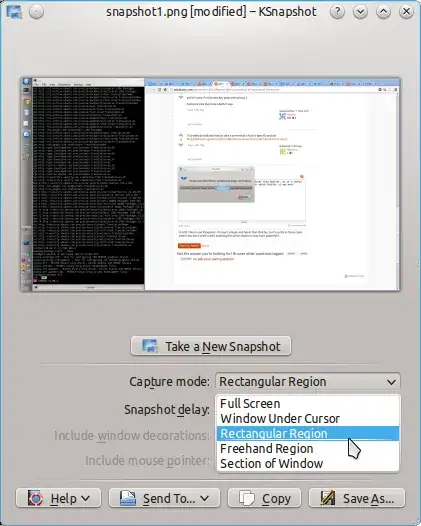
enter image description here

gertvdijk
  • 67,007
  • 33
  • 188
  • 283
  • It is called "Spectacle" now (early 2020)....and did what I needed it to. I couldn't figure out the "save AS" function (to give the file a custom-meaningful name)...but I was still able to save-as (the "random" name it supplies). But the "rectangle region" was the selling point for me. Thanks! – granadaCoder Feb 19 '20 at 08:04
  • If anyone is wondering, Spectacle is a snap app. `sudo snap install spectacle` – Terrance Oct 26 '20 at 14:08
1

For 14.04:

  • go to System Settings
  • choose Keyboard button, Shortcuts tab
  • choose 'Custom Shortcuts'
  • click the + button
  • name: 'Screenshot of selection', Command: 'gnome-screenshot -a -c'
  • hit apply
  • click the word 'Disabled' to change the shortcut whatever you like -- I like CTRL-SHIFT-minus

Now, I you hit the shortcut, the cursor changes to a big +. Select an area, and the screenshot is saved to the clipboard.

klokop
  • 201
  • 2
  • 10
0

Use Flameshot, a free software available in the repository

robertspierre
  • 1,012
  • 1
  • 8
  • 24
0

you could "map" a key combo to do a gnome-screenshot -w to grab a window or gnome-screenshot -i for interactive options.

and of coure, PrintScreen key grabs everything. :)

Someone else may have a better way.

Habitual
  • 254
  • 2
  • 10