14

I have Ubuntu 11.10 on one computer and Windows 7 on another. The Ubuntu computer has a printer attached, and I want to add this printer to the Windows 7 computer. Printing locally works. The problem is that Windows is not able to see the shared printer, so I cannot add it.

I am guessing that some Ubuntu setting / software is still missing, but what exactly?
How can I make Windows add this printer?

  • In the CUPS web front-end, the checkbox Share printers connected to this system is checked. I'm not sure whether the checkbox Allow printing from the Internet needs to be checked also; I've tried both settings, and neither worked.

  • On Windows, I can connect to the CUPS web front-end and see the printer listed (see screenshot below). And yet, when I add that printer URL, Windows complains that it cannot connect to the printer.

  • The Ubuntu computer is a fresh install. I already have full write access on Windows shares, so something of this kind must be preconfigured out-of-the-box. I have not installed or changed any applications or settings regarding Samba or smb.conf. Do I need to do anything in this regard (on Ubuntu 11.10!) or is that obsolete or already included and fully configured?

  • Googling for this problem gives me plenty of material dated 2005-2009 but nothing newer. I don't think that's still valid in 2012 and I don't want to mess up my new installation with outdated instructions. Via one of the comments I came to this page about network printing from Windows but it does not specify whether Samba is already installed -- or which Samba to install, because searching in the Ubuntu Software Center yields several results.
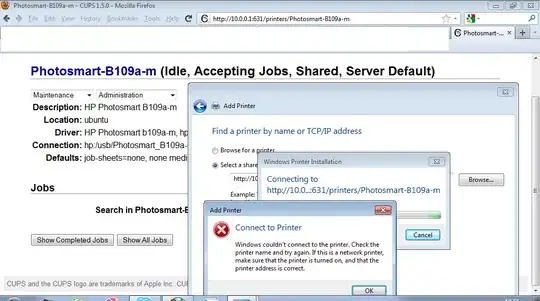
enter image description here

Ringtail
  • 16,011
  • 12
  • 60
  • 183
Torben Gundtofte-Bruun
  • 10,354
  • 26
  • 73
  • 113
  • I _think_ you have to configure a samba printer share, but I have never done that myself before. – Baarn Feb 04 '12 at 19:46
  • a quick google search dug up this: https://help.ubuntu.com/community/Samba/PrinterSharing – Baarn Feb 04 '12 at 20:51
  • CPUS can work as I've used it from Windows before, but you may need to make sure your configuration is absolutely correct. There are many security permission stuff that you must get right. – billc.cn Feb 05 '12 at 05:07
  • 1
    The trick I had to do using CUPS without samba was to connect to the printer at http://[serverip]:631/printers/[printer-name-here] as opposed to trying to add a local port at the IP address of the server. – ernie Sep 28 '12 at 07:21
  • You have complete tutorial for Linux-Windows printing here: [Printers and Linux - How to find drivers, install, setup | Linux migration tutorials](http://linuxibos.blogspot.com/2012/05/seprinters-linux.html) – omanosoft May 24 '12 at 09:32
  • Welcome to Ask Ubuntu! Whilst this may theoretically answer the question, [it would be preferable](http://meta.stackexchange.com/q/8259) to include the essential parts of the answer here, and provide the link for reference. Its important that you explain your affliation with this link - if its your blog then say so. – fossfreedom May 24 '12 at 09:41
  • While this answer may not be complete, one of the images on the site (step 2) listed is really helpful to connecting Windows to a CUPS printer **without** Samba. It is worth looking at if you have no prior experience with CUPS and Windows won't detect your printer. Like a previous comment said, `http://[serverip]:631/printers/[printer-name-here]` for connecting in Windows. The printer name can be found when going to `http://[serverip]:631` in your browser and then going to printers. – JohnDoe Mar 14 '17 at 03:19
  • This really helped. You better to post the full answer and then reference. – Sachith Muhandiram Nov 24 '17 at 05:05

2 Answers2

13

Well, I finally got it working. It turns out there are several parts that need to work together (of course). But here's a way that requires zero work in terminal:

1) Setup Samba:

  • Install "system-config-samba".
  • Launch "Samba" from the launcher.
  • Open "Preferences" > "Server Settings" and enter the workgroup name used in Windows.

2) Share printer:

3) Connect the printer:

Do either of these steps:

  • On the Windows computer, open Windows Explorer and go to the "Network" item. There's an icon for the Ubuntu computer; open it. There's an icon for the printer shared from Ubuntu. Right-click that one and select "Connect...".
  • On the Windows computer, select "Add new printer" then "Connect to a printer on the Internet or network" and specify the full path of "http://{computername}:631/printers/{printername}"

Then go to the printer properties and set it up with the desired defaults.

Torben Gundtofte-Bruun
  • 10,354
  • 26
  • 73
  • 113
1

Windows drivers must be uploaded through Windows Explorer unlike Linux drivers which are installed on Linux filesystems.

You may either

  • use a PS driver on Windows and a specific driver in CUPS or
  • use a specific driver in Windows and the Raw (which actually means transparent) driver in CUPS
MUY Belgium
  • 296
  • 3
  • 10