6

A power spike broke the CPU temperature sensor on my motherboard. Memtest86+ runs fine. However, neither Linux nor Windows boots under default options. Windows simply shuts down during boot. Linux reports overheat during boot and shuts down in a few seconds. If I specify thermal.nocrt=1 in the kernel boot options, Linux will boot and work correctly.

The CPU temperature reported by the motherboard sensor is -40℃ (negative) in BIOS and 216℃ (due to integer overflow) in Linux. The CPU temperature reported by the CPU's built-in sensor is 35℃, which is correct and consistent with the idle temperature before the power spike.

It is reasonable to believe that Windows shuts down also because it sees an extremely high temperature. In order to use Windows on this motherboard, I need to disable the software overheat protection. Essentially, I need the equivalent of thermal.nocrt=1 in Windows. Is that possible?

netvope
  • 5,215
  • 14
  • 57
  • 77
  • 1
    Disable in BIOS, not in Windows – Nikola Dimitrijevic Oct 08 '13 at 00:11
  • I tried all thermal related options but nothing changed. Furthermore, if the shutdown were initiated by some sort of hardware protection circuit, Memtest86+ would have shutdown, and `thermal.nocrt=1` wouldn't have fixed it on Linux. The shutdown is initiate by some software logic in the OS. – netvope Oct 08 '13 at 00:15
  • Am I correct in understanding that you cannot get Windows to boot at all - That is shuts down before completely starting? Have you tried booting to Safe Mode? – BillP3rd Oct 08 '13 at 00:28
  • @BillP3rd Yes, the machine powers off while Windows is loading (at this screen http://goo.gl/oP0M01), before it reaches the login screen. Unfortunately safe mode gives the same result. – netvope Oct 08 '13 at 00:35
  • Motherboard make and model? – BillP3rd Oct 08 '13 at 00:51
  • EVGA nForce 730i – netvope Oct 08 '13 at 01:01
  • Have you disabled "Thermal Management" in the BIOS? (p. 63 in the manual). – BillP3rd Oct 08 '13 at 01:28
  • @BillP3rd Yes I did. – netvope Oct 08 '13 at 01:35
  • It sounds like your only option (based on what I can - or, more to the point - can't find) might be to replace the faulty sensor. I found a key in the Windows registry that *may* control this but, unfortunately, it's binary and I can find no description of what, precisely, it contains. – BillP3rd Oct 08 '13 at 01:39
  • Thanks for trying to help, BillP3rd. In the worst case, I could replace Windows by Linux on that machine, but it would be disappointing that Windows won't let the user override its overheat protection. – netvope Oct 08 '13 at 01:47
  • One solution would be to run Windows in a Linux VM (wouldn't it be something if Windows refused to load on an already running machine?). – fixer1234 Oct 18 '14 at 20:30

2 Answers2

2

Apologies that I don't have it for Win8, but it should be similar to Win7 --

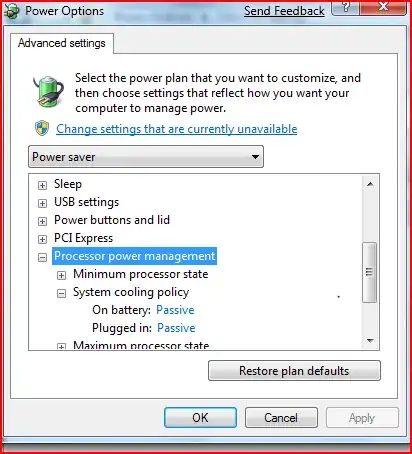
  • Control Panel > Power Options Click on "Change plan settings" next to the plan that is currently selected.
  • Click on "Change advanced power settings"
  • Scroll down to Processor Power Management and click the + to expand.
  • Change "System Cooling Policy". Change to "Passive" & apply.

NOTE that some systems do not have this control in this location.

disable thermal policy

It's even been youtube'd - http://www.youtube.com/watch?v=SeDh8-4-lm8

I would like to note that I think it is foolish to do this, but yes, you can disable thermal shutdowns.

Debra
  • 4,268
  • 1
  • 17
  • 24
  • 1
    Did you notice that, unfortunately, he can't get Windows to start? Also, this setting doesn't affect how Windows decides it's time to shutdown. It affect how Windows controls the CPU fan. (http://maximumpcguides.com/windows-7/set-the-system-cooling-policy/) – BillP3rd Oct 08 '13 at 01:19
  • I tried that by loading the registry hive on another computer and setting ACSettingIndex=0 in the power scheme I use, but nothing changed – netvope Oct 08 '13 at 01:51
  • 1
    Sorry, I was asking the question he asked; I assumed that, since he asked about doing it in Windows, he'd take the drive to another system or otherwise set it. Otherwise, why ask how to do it in Windows? Netvope, "ACSettingsIndex" is related to sleep settings, not thermal monitoring. The passive cooling policy essentially stops Windows from managing the thermal state of the system. – Debra Oct 08 '13 at 02:06
  • @Debra In a Windows 8 VM, I changed "System cooling policy" in Power Options and the only value changed under CurrentControlSet was Control\Power\User\PowerSchemes\{GUID1}\{GUID2}\{GUID3}\ACSettingsIndex, where GUID1 is the balanced scheme, GUID2 is Processor power settings, and GUID3 is System cooling policy. This is how I figured out the registry entry that controls "System cooling policy". – netvope Oct 08 '13 at 02:22
  • The documentation is astoundingly poor. My apologies. – Debra Oct 08 '13 at 02:38
  • I know this is like 9 years late, but for others -- @netvope that depends on what power plan your ailing Windows install has active. If you changed the setting for "Balanced" scheme, but Windows is on the "Power Saver" scheme, you're flipping switches that aren't wired to anything. – Doktor J Apr 06 '22 at 00:08
0

Changing system cooling policy worked with my Acer Travelmate 5742ZG. It was shutting down in random occasions after starting some of the installed programs.

  1. Open the Control Panel
  2. Select Power Options
  3. Click on Change plan settings next to the plan that is currently selected.
  4. Click on Change advanced power settings
  5. Scroll down to Processor Power Management and click the + to expand
  6. Change System Cooling Policy to Passive
  7. Click Apply
music2myear
  • 40,472
  • 44
  • 86
  • 127