21

I have an encrypted volume on OSX Lion.

How do I make it larger?

evan.bovie
  • 3,202
  • 20
  • 30
hvgotcodes
  • 898
  • 1
  • 7
  • 15

3 Answers3

24

Let's do it the the Disk Utility way!

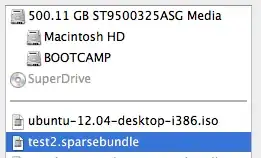
  1. I'm assuming you have opened Disk Utility and you can see your disk image in the list

  2. Make sure your .sparsebundle / .sparseimage is unmounted / ejected

  3. Select your disk image

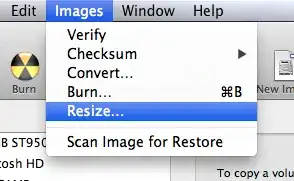
  4. Select Images, then select Resize...

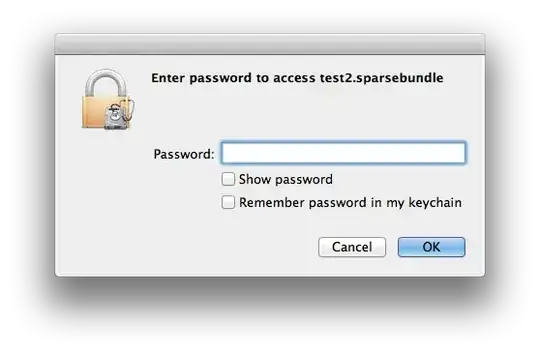
  5. Enter your password

  6. Resize that mofo

  7. Double-click the disk image in the list to mount it

  8. Choose your path

    1. If you select the actual volume in the list (the volume in the image, not the image) and the available space matches the new resized size, then you are done

    2. It doesn't match? Well... This means you have a disk image with a partition map. Read on.

      1. Unmount / eject that sucker

      2. Select the disk image (the .sparsebundle / .sparseimage)

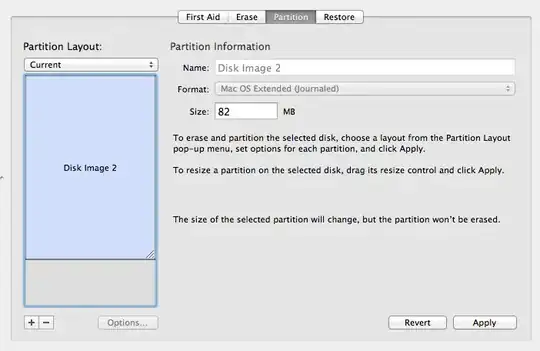
      3. Select the Partition tab

      4. Drag the corner to enlarge partiton to the maximum size

      5. Select apply

  9. There is no step 9! Treat yourself to a large, toasty, disk image / chilled beverage

Ignore this method!

All it takes is a short Google search to discover the answer. Ray's Weblog has a solution:

A Sparse Bundle Image will increase in size automatically but will not shrink automatically. Before shrinking the sparse bundle, mount it and empty the trash to get rid of any deleted items from the image.

Unmount the image and follow the commands below.

To compact (image size stays the same):

hdiutil compact ~/Documents/filename.sparsebundle
hdiutil compact -help (for a list of options)

To increase the image size (eg., 20G to 30G)

hdiutil resize -size 30g ~/Documents/filename.sparsebundle
hdiutil resize -help (for a list of options)

Mount the image then do a Get Info on the Volume to see the new size.

Martijn Pieters
  • 242
  • 2
  • 16
evan.bovie
  • 3,202
  • 20
  • 30
  • what about the volume in the bundle? from what i see, you can't resize that. – hvgotcodes Jun 08 '12 at 03:07
  • Are we talking about a `.sparsebundle`, or a `.sparseimage`? – evan.bovie Jun 08 '12 at 03:24
  • Could you repair the broken images in this post? Upload them to the SE imgr host (just use the image button on the editor toolbar). – Martijn Pieters Oct 18 '13 at 15:12
  • @MartijnPieters I'll do that, but TinyGrab must have made some server code change that broke embeds. – evan.bovie Oct 22 '13 at 15:59
  • @emb1995: ah, they are indeed still there; TinyGrab replaced the actual image with a webpage showing the image instead. I grabbed the images from those pages (skipping past the silly overlay) and uploaded them to the Stack imgr host instead. – Martijn Pieters Oct 22 '13 at 16:09
  • @MartijnPieters Thanks for the edit! It functioned the same way before, but they must have had some server-side code that detected when a request was from an embed or a straight-up browser request. I've already submitted a support ticket to TinyGrab. – evan.bovie Oct 22 '13 at 17:00
  • @emb1995: I copied the URL from the edit window, pasted it into a new tab, and that loads a HTML page with the image and some UI. That is not an embed request. – Martijn Pieters Oct 22 '13 at 17:02
  • @MartijnPieters: I meant the fact that a request for a URL within an `` has request headers like: `Accept:image/webp,*/*;q=0.8`. A normal request from an address bar / link click has request headers like: `Accept:text/html,application/xhtml+xml,application/xml;q=0.9,image/webp,*/*;q=0.8`. TinyGrab's server code could detect this and respond with either the image alone or their overlay. This would allow for easy embeds by using the short link instead of needing to `inspect element` -> `copy URL`; they are using some JS/HTML voodoo to prevent image theft or whatever their motivations are. – evan.bovie Oct 23 '13 at 01:15
  • 5
    "The selected image cannot be resized" at step 6 – Michael Apr 12 '18 at 14:39
  • 5
    Ignored method is worked for me. With Disk Utility I got "The selected image cannot be resized" (not encrypted image*) – BoShurik Oct 26 '19 at 11:44
11

I have an encrypted .sparsebundle image and the Disk Utility approach failed with "The selected image cannot be resized" error. What worked instead was this Terminal command:

hdiutil resize -size 30g ~/Documents/filename.sparsebundle

(Replace 30g with the desired size.)

jamix
  • 211
  • 2
  • 4
0

Easiest way, especially on newer versions, is to put a large file in the folder you wish to create a disk image from, go through the process in disk utility, then delete the large file. Then you have a folder, protected as a disk image with a larger capacity - it's the 12M or whatever they give you plus the memory of the large file.

Or if you've run out of space just back up what's in the file and then make a new one with the old stuff in it, and you'll have 12M extra.