128

I am having to read through a MASSIVE (1000+ page) PDF specification in Adobe Reader. It has always bugged me that if you scroll to the edge of a page, the Reader automatically jumps to the top of the next page.

Is there a way to cut this functionality off so that as I'm scrolling, the bottom of the current page has a minimal space, and the next page continually scrolls into view, rather to jump in and take over the full display area?

I know that Microsoft Word can behave this way. Is there a setting in Adobe Reader 10, or higher, that I can change that will allow continuous document scrolling?

RLH
  • 4,185
  • 16
  • 42
  • 55

9 Answers9

137

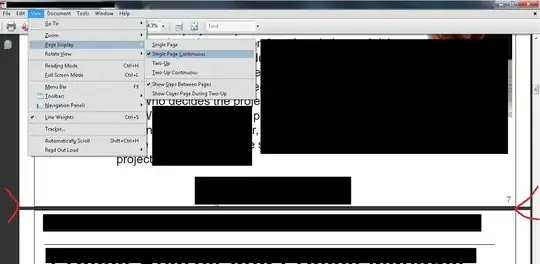
For Adobe Reader X, XI:

To make continuous scrolling the default behavior:

Edit » Preferences » Accessibility » Always use Page Layout Style. Check Single Page Continuous.

To only do this for the current session:

Go to View » Page Display and check the option Enable Scrolling (this is only a one-time fix and will be reset the next time you open Adobe).


For Adobe Reader 9:

Go to View » Page Display and check the option Single Page Continuous.

They see me scrollin', they hatin'

TookTheRook
  • 3,495
  • 1
  • 15
  • 18
  • 3
    This setting is initialized from the PDF file. You'll rapidly become accustomed to doing this every time you open the offending document... At least in Reader X there is a toolbar button whose tool tip reads "Fit to window width and enable scrolling" located to the right of center of the tool bar items that does what it says on the tin. – RBerteig Aug 17 '11 at 00:53
  • unfortunately it doesn't work for epub and mobi – JinSnow Aug 23 '16 at 06:00
  • 10
    Absolutely incredible that this isn't the default configuration... – bpcookson Oct 13 '16 at 17:43
  • 1
    Works on Reader XI also. I was about ready to lynch whoever did the manual I was reading. – Loren Pechtel Jul 21 '17 at 02:37
  • 1
    This solution led me to another solution for a problem annoying me -- the default zoom. Turn off the zoom override here, and use the one under Page Display. Much appreciated for the quality answer!! **Note: both of these are still relevant answers in 2017 for Acrobat Reader** –  Nov 24 '17 at 03:56
  • 1
    The default behaviour fix worked for me, but I had to open & close the file for it to take effect. I suppose it would have worked right away if I made both suggested changes, however. – Danneyland Jun 12 '20 at 18:42
  • I wish I could upvote this question and answer more than once. I search for it every time I set up Acrobat on a new computer. – Tatiana Racheva Jul 22 '23 at 01:04
77

Everything they said was fine but when you close and open Adobe Reader again, it goes back to single page viewing and that's annoying.

It's better to make it the default by doing this:

Edit » Preferences » Accessibility » Always use Page Layout Style. Check Single Page Continuous.

This helped me much more than having to keep switching it.

slhck
  • 223,558
  • 70
  • 607
  • 592
Lilly
  • 779
  • 5
  • 2
27

For continous scrolling on full screen perform the following steps:

  • Go Fullscreen: CtrlL

  • Enable AutoScroll: CtrlShiftH

  • Disable AutoScroll: CtrlShiftH

Now you can scroll with the normal arrow keys.

slhck
  • 223,558
  • 70
  • 607
  • 592
sid
  • 406
  • 4
  • 8
6

You need to enable scrolling. In Adobe Reader X, there might be a button for this on the toolbar. If it's not there, you can choose to show the button by right clicking on the toolbar and selecting Enable Scrolling from the Page Display option.

You can make this the default view from Edit > Preferences... > Page Display > Page Layout. Set this to Single Page Continuous.

sblair
  • 12,617
  • 6
  • 48
  • 77
3

In Adobe Reader open the View menu and in the Page Display sub-menu choose Single Page Continuous.

Alternatively, you can use you keyboard by pressing the below keys in the displayed order:

alt, V, P, C

Windos
  • 11,061
  • 4
  • 38
  • 56
3
  1. View » Page Display » Enable Scrolling

  2. CtrlL for full screen. This will change the cursor to the "hand" and the keyboard arrows will now scroll partial pages.

  3. Esc – This gets out of full screen mode. The "hand" cursor and partial page scroll is still available.

  4. Esc – This changes the cursor to the "I" bar and resumes the default scrolling.

slhck
  • 223,558
  • 70
  • 607
  • 592
TheFormula
  • 31
  • 1
1

I think the best way to get rid of this annoying mode is choose another reader. I use pdf-xchange which let me chose single-page continuous mode, and un-check "respect to original view mode", so all PDF file opened in continuous mode.

Jack Wu
  • 21
  • 1
1

For version 2021

View -> Page Display -> Enable Scrolling

Gulzar
  • 151
  • 1
  • 1
  • 9
0

The only way to make the scrolling choice permanent is from the Edit/Accessibility option. Edit/Preferences is not working. Can someone in Adobe fix this ?

Raja
  • 9
  • 1
  • 1
    I'm curious. Isn't this the same answer as [Lillys](http://superuser.com/a/391201/50173)? Correct me if I'm wrong – nixda Jan 04 '13 at 19:19