8

After removing the following executables from starting up, in the near future they reappear again:

  • DDMService.exe: Re-enabled when visiting a DivX video online.
  • DivXUpdate.exe: Re-enabled when visiting a DivX video online.
  • GoogleUpdate.exe: Re-enabled task, I think by Google Chrome? I see no auto-update option.
  • iPodService.exe: Re-enables after starting iTunes.
  • iTunesHelper.exe: Re-enables after starting iTunes, useless on SSDs.
  • Reader_sl.exe: Re-enables when updating Adobe Reader, useless on SSDs.

It bores me that these processes keep popping back up, while my software functions well without them.
I'm smart enough to update the software weekly through FileHippo so I don't need automatic updates.

What can I do to never see these processes again? Even after reinstallation of those applications...

A general solution is also welcome! :-)

Tamara Wijsman
  • 57,083
  • 27
  • 185
  • 256

8 Answers8

11

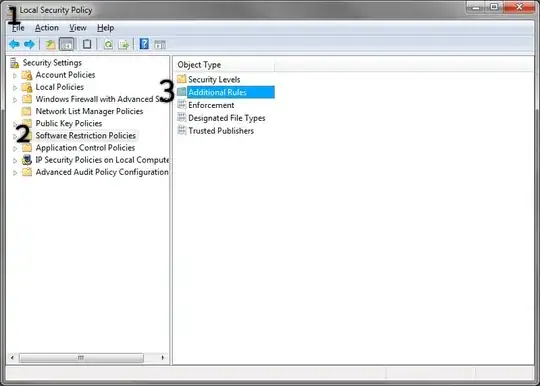
Permanent solution (this will work even when an application is updated or reinstalled):

enter image description here

  1. Press Start and type Local Security Policy, and press Enter.
  2. In the left pane, click on Software Restriction Policies.
  3. Then, in the right pane, double-click Additional Rules.
  4. Right-click on any empty space in the right pane and select New Path Rule....

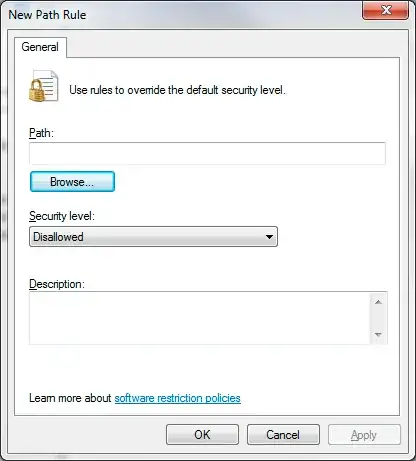
enter image description here

  1. Click browse and select the program you need to block. For example, DivXUpdate.exe could be in C:\Program Files\DivX.
  2. Make sure the drop-down list under Security level says Disallowed.
  3. Click OK and you're good to go.

I'd suggest not doing this for GoogleUpdate.exe, as it could interfere with Chrome's auto-update. Instead, just remove GoogleUpdate.exe from your system startup (use msconfig or google how to work the registry to remove startup items). Also, run Task Scheduler and disable the Google Update task.

George P. Burdell
  • 1,569
  • 3
  • 12
  • 23
  • This is how I was going to suggest doing it. It works fine. – Joe Taylor Mar 04 '11 at 15:03
  • A rule exists for `%HKEY_LOCAL_MACHINE\SOFTWARE\Microsoft\Windows NT\CurrentVersion\SystemRoot%` and `%HKEY_LOCAL_MACHINE\SOFTWARE\Microsoft\Windows\CurrentVersion\ProgramFilesDir%` in those folders, are they supposed to be there? I think they disallow me to add any executable because it isn't working... – Tamara Wijsman Mar 04 '11 at 15:06
  • +1 @George: Removed those two and everything remains working, I effectively disallowed myself from running Internet Explorer so this seems to solve my problem. :-) – Tamara Wijsman Mar 04 '11 at 15:08
  • 1
    Oh, I like this solution better than mine. I hadn't even thought of playing with security policies. Guess that's what I get for being a developer and not an admin by nature. I always look at a programming solution first. – BBlake Mar 04 '11 at 16:05
  • Go to your `C:\Windows\Installer` folder, enable the `Subject` and `Title` columns for the MSIs, look for the Google Updater one, right-click it, and press Uninstall. :) – user541686 Mar 19 '11 at 04:49
  • `msconfig` is for temporary/debug changes to system startup. Don't use it for permanent changes (not despite the fact it will alert you that you are running in a selective startup mode _every time you login_, until you re-enable what it was used to disable). Use sysinternals `autoruns` to establish how the programs are being launched at login, in order to remove that directive to do so. – user66001 Apr 27 '16 at 15:35
4
  • GoogleUpdate.exe
    This is a scheduled task. You can remove it or disable it from there. Find the Scheduled Tasks item in the control panel.
  • iPodService.exe/iTunesHelper.exe:
    These are services. Go to the start menu, choose run, and then type services.msc to view the services management snap-in. If you have an iPod or iPhone, you might find you actually want to leave one or both of these running.
  • Reader_sl.exe
    This is started via the \\HKEY_LocalMachine\Softare\Microsoft\Windows\Current Version\Run key in the registry. Adobe will restore this key every time it updates, so rather than removing it entirely you might want to just break the entry (change it to point to a non-existent location), and then (as administrator) change the permissions on that entry such that no one has access to update it (but this might also prevent Adobe from updating correctly in the future)

    You might find a few other entries here you don't need as well, but be careful, as it's easy to end up removing something from this list that it turns out you were using after all.

I'm unfamiliar with the other items in your list.

For my part, I have a bat script that I run now and then that removes these, as well as a few other annoyances (the Acrobat desktop shortcut and Start Menu item, the Microsoft Silverlight start menu item, and the Apple Quicktime shortcuts and start menu items).

Joel Coehoorn
  • 28,098
  • 14
  • 88
  • 133
  • I know how to disable the tasks and services, the problem is that they return and a permanent solution would get me rid of this behavior once and for all. Doesn't an invalid location result in errors because the file is not found? – Tamara Wijsman Mar 04 '11 at 14:55
  • @tom not if the "invalid location" is a program that just quits right away. – Joel Coehoorn Mar 04 '11 at 14:57
  • +1 @JoelCoehoorn: I see, it could have worked. What about the scheduled task that reoccurs on reinstallation? – Tamara Wijsman Mar 04 '11 at 15:10
  • For scheduled tasks, I believe you can set them to run using credentials that don't have read/execute permissions for the program. – Joel Coehoorn Mar 04 '11 at 15:45
3

Not much for several of them I know. Many software apps, including iTunes, Adobe Reader and Chrome, are designed to check for these processes and replace/re-enable them whenever they can't find them or they see they aren't running. Sometimes you can have temporary success in suppressing them, such as replacing iTunesHelper with an empty executable file that does nothing. But the apps just keep replacing them.

About the only option I have heard of for a permanent solution is one guy I read in a forum created his own service that continually watches for these other processes and kills them when it finds them running. Harsh, but he said it worked. But that was a couple years ago and I don't recall where I saw it at.

BBlake
  • 5,228
  • 2
  • 26
  • 31
  • A Python script I can run on a daily basis sounds like an idea I could implement, it could do various other tasks too that I now do manually. I'm going to looki into George's solution first... – Tamara Wijsman Mar 04 '11 at 14:59
  • +1 @BBlake: Your solution would also have worked, I should automatize my maintenance in the near future. – Tamara Wijsman Mar 04 '11 at 15:09
0

Use 'autoruns' from Sysinternals. There are over 100 places for a process to start up not including timers buried in the kernel...autoruns knows most of them. You can uncheck them and they will not run next boot.

  • 1
    Please read [How do I recommend software](https://meta.superuser.com/questions/5329/how-do-i-recommend-software-in-my-answers/5330#5330) for some tips as to how you should go about recommending software. You should provide at least a link, some additional information about the software itself, and how it can be used to solve the problem in the question. – DavidPostill Apr 22 '17 at 20:36
0

Navigate to the folder where these exe files reside, rename the file extension, example: DivxUpdate.exe to DivXUdate.exe.safe

First you may have to unhide file extensions in folder properties.

Moab
  • 58,044
  • 21
  • 113
  • 176
  • Doesn't renaming result in errors because the file is not found? – Tamara Wijsman Mar 04 '11 at 14:54
  • Sometime yes, most of the time no, usually just errors in event viewer. I have done this with windows messenger chat program in XP for many years without any gui errors. – Moab Mar 04 '11 at 15:44
  • The ability for this to work is completely dependent on the application since each one treats "not found" errors returned by creating a process differently. Be warned; this may cause problems. – Qix - MONICA WAS MISTREATED Feb 24 '13 at 08:12
0

You could try creating services out of the executable. Then once they are created, disable the service which should effectively disable them starting. You will probably have to enter msconfig via the run cmd to stop startup services.

Here is a link on how to create a service out of an executable link

or

better still here is a page in the stackoverflow superuser section link2

Other: you should be able to stop via setting dword value in registry to 0

IanN
  • 441
  • 1
  • 3
  • 8
0

If Chrome updates are restarting GoogleUpdate.exe you can switch to SRware Iron which is an alternative Chromium build and does not contact any server...

Oaks
  • 1
0

easy way copy this then save as cmd

@echo off :start net stop DDMService.exe net stop DivXUpdate.exe net stop GoogleUpdate.exe net stop iPodService.exe net stop iTunesHelper.exe net stop Reader_sl.exe goto start

ahsna
  • 1