294

This may be a silly question, and I think I have looked elsewhere to find the answer... Might be a path issue, but when I open the command line and type from the C:\>:

cd D:\

I cannot get to the D drive. Even if I type:

cd D:\<folder name>

The command.exe will auto-complete the line with the tab key, so it knows where I'm at. It just doesn't print to screen the result or actually get me there. This problem exists for the network drives as well.

Now, if I use the chdir (cd) command like this:

chdir D: or cd d:

I get the print out of the D:\ below the command but it still says I'm in the C:\.

I feel like I'm missing something simple.

nicorellius
  • 6,625
  • 13
  • 44
  • 75

9 Answers9

414

Going back to the days of DOS, there's a separate "current directory" for each drive. cd D:\foldername changes D:'s current directory to the foldername specified, but does not change the fact that you're still working on the C: drive.

What you want is simple:

D:

Here you can see how the "separate current directory for each drive" thing works:

C:\Users\coneslayer>e:

E:\>c:

C:\Users\coneslayer>cd e:\software

C:\Users\coneslayer>e:

e:\Software>
barlop
  • 23,380
  • 43
  • 145
  • 225
coneslayer
  • 8,652
  • 1
  • 28
  • 23
86

It did work, as the command is designed to work.

You simply don't know how it's actually supposed to work.

You're not using a Unix or Linux shell program. The cd command in Microsoft's command interpreter doesn't behave as the cd commands in such shells do. It behaves somewhat differently. In particular, it doesn't always change directory. In Unix and Linux shells, cd only ever sets the working directory. In Microsoft's command interpreter, cd sometimes queries it. There's no separate pwd command, so cd does two jobs.

If you give it no arguments, or an argument that is just a drive letter and a colon without a path, then it reports the current directory instead of changing it. If you give it no arguments, it reports the current directory of the current drive of the command interpreter process. If you give it only a drive letter and a colon as an argument, it reports the command interpreter process' current directory of that drive. Each drive has its own current directory in the command interpreter. (This is a fiction maintained by the run-time libraries for Microsoft's and several other vendors' implementations of various programming languages. Win32 itself doesn't work this way.)

So when you gave it d: as an argument, it reported the the command interpreter process' current directory on drive D to you, which happened to be D:\. If you'd given it no arguments at all, it would have reported C:\ to you.

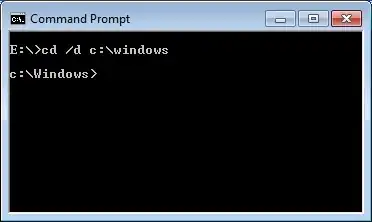
If you want the cd command to always be in set mode and never be in query mode you need to add the /D option to it. This forces the command to always be in set mode, and also extends it so that it changes the current drive as well as changing a drive's current directory. (In other words, it works more like the underlying Win32 API actually does.)

So, for example, the command line

cd /d d:
will change directory to whatever the current directory on drive D is, and also change the current drive to drive D.

If you want to change the command interpreter process' current drive otherwise, the cd command is not the way. You do so by simply typing the drive letter and a colon:

d:

Further reading

  • JP Software (2011). CD/CHDIR TCC On-line Help.
  • Microsoft corporation (2001). Chdir (CD). TechNet Windows XP Command line reference A–Z.
JdeBP
  • 26,613
  • 1
  • 72
  • 103
  • 6
    [Related post by Raymond Chen](http://blogs.msdn.com/b/oldnewthing/archive/2010/10/11/10073890.aspx). – Daniel Beck Jan 19 '12 at 14:27
  • 3
    Not completely right. If you do `cd d:\ ` it changes the working directory on `d:`. If you do `d:\ ` afterwards it will be at `d:\ `. If you do `cd d:\something\something` nothing will happen at first. But if you do `d:\ ` afterwards again, your path will be `d:\something\something"`! – sinni800 Jan 19 '12 at 15:06
  • 5
    None of which contradicts what is written above in any way, `sinni800` (apart from your getting the syntax for changing current drive wrong, that is, but I'll overlook that). I didn't include discussion of what happens when one supplies a pathname in an argument because (a) that's not what the question is about and (b) it's in the further reading. – JdeBP Jan 19 '12 at 15:24
  • 6
    No, we're not. It would be wrong to talk of partitions instead of drives here, `user unknown`. For starters, partitions are not the same as volumes, and drive letters map to volumes, not partitions. And when one is talking at this level of abstraction, _drive letter_ and _current drive_ are the conventional terms, as used here, in the further reading indicated, and even in the `cd /?` help text. – JdeBP Jan 19 '12 at 17:09
  • 2
    I have used this command for at least 20 years and never knew this. – Chris Ballance Mar 07 '13 at 16:23
  • Since you're providing a hyperlink to JP Software's online help, you may also want to refer to [JP Software's online help for their "CDD" command](http://jpsoft.com./help/cdd.htm), as that is quite relevant to this conversation. – TOOGAM Nov 22 '16 at 02:23
72

Afraid this is incorrect. It's true from the days of DOS, but the command line in Windows NT and later is not DOS. In the command line that everyone uses today, you have the /D switch. The /d switch will change the current directory of the specified drive AND change to that directory. The /d switch must be specified before the path. For example:

C:\> cd /d D:\foo\bar\
D:\foo\bar\>

windows command prompt cd

nhinkle
  • 37,198
  • 36
  • 140
  • 177
Multiverse IT
  • 4,478
  • 16
  • 22
  • 4
    +1 because I learned something new, but I don't think that anything I wrote is incorrect. – coneslayer Apr 27 '10 at 16:45
  • 3
    Your answer is correct too, Multiverse IT, but coneslayer wasn't incorrect. Thanks for your efforts. I learned two great tricks on this question. – nicorellius Apr 27 '10 at 17:07
  • 2
    From my perspective "What you want is simple ... D:" is incorrect. Yes it works and is a valid method of achieving the goal, but it is not, strictly speaking what he should want. Additionally, the way the comment is worded implies that you cannot use CD to do this - that implication is incorrect. – Multiverse IT Apr 28 '10 at 00:31
  • 1
    his main issue is to "I cannot get to the D drive.". As such, the other answer is correct. Your solution takes simply one step less (which is good). It doesn't make the other one incorrect. – Gnoupi Apr 28 '10 at 08:05
  • 1
    Hmm, "what he should want." Sounds rather presumptive ;-) – nicorellius Jul 18 '12 at 05:59
  • typing just C: to change to the C: drive in Windows 10 worked – Yvonne Aburrow Jan 11 '17 at 11:22
21

CD stands for Change Directory, and not Change Drive. So it would not change to D: like that. To achieve this you'd have to simply type in the drive letter

e.g.

d:

IUnknown
  • 2,266
  • 1
  • 18
  • 21
  • 17
    cd /D D: changes drives and directories... – Michael S. Jan 19 '12 at 13:34
  • But d: is a partition, not a drive. – user unknown Jan 19 '12 at 16:13
  • 1
    @userunknown In the Dos 1.0 era when the shell was designed there were only floppy disks which AFAIK can't be partitioned. Initial hardrive support was only for the primary (first) partition on a drive. Extended partition support wasn't added until later. – Dan Is Fiddling By Firelight Jan 19 '12 at 16:35
  • I don't see a MS-DOS 1.0 tag, nor 1.0 mentioned. Maybe you can't partition a drive with MS-DOS programs, but you can install an MS-DOS on a partitioned drive. I guess MS-DOS is out of support though, and the tag is there, because many users believe that cmd.exe and MS-DOS means the same, which is another error to address. Apropos: MS-DOS 1.0 was never published. – user unknown Jan 19 '12 at 17:07
  • 1
    @userunknown The design decisions date back to the initial versions of DOS. Changing behavior would have broken older programs (see Daniel Beck's comment below). PS; according to Wikipedia MS DOS 1.x was published. – Dan Is Fiddling By Firelight Jan 19 '12 at 18:50
10

Use

cd /D D:

to do this. You can specify paths also.

phuclv
  • 26,555
  • 15
  • 113
  • 235
Michael S.
  • 3,987
  • 8
  • 42
  • 64
9

The working directory in cmd.exe is maintained on a volume-by-volume basis; the Working Directory for the C: drive is different from the working directory for the D: drive.

When you pass only a drive letter to cd, it will print the working directory for the specified drive.

In your case, the working directory of the D: drive is the volume root itself, D:\.

To change volumes from C: to D: simply enter the drive letter:

C:\>D:
D:\>
Andrew Lambert
  • 7,635
  • 3
  • 30
  • 47
6

If you want to change drive in a DOS command prompt then you simply have to write:

[Drive Letter]:

For example, if you want to move to the D:\ drive then you just have to type the following in a command prompt:

D:
Peter Mortensen
  • 12,090
  • 23
  • 70
  • 90
Darsak
  • 161
  • 1
  • 1
2

pushd works even when you need to go to drive sub directory e.g. D:\Tests\Logs.

Just use it so:

pushd D:\Tests\Logs

If you want to go back to previous directory use popd:

C:\Users>pushd D:\Tests\Logs
D:\Tests\Logs>popd
C:\Users>
Ramhound
  • 41,734
  • 35
  • 103
  • 130
BladeMight
  • 459
  • 3
  • 15
-1

While you going to search option in the tool bar and search for cmd or by selecting windows All app selecting command prompt then it takes to some other command prompt.

Instead try pressing Windows+R and search for cmd, it takes to C:\> drive. From there you can navigate to D:\> or anywhere you need

phuclv
  • 26,555
  • 15
  • 113
  • 235